Settings
The Settings screens: users, permissions, study modules, region levels, system settings, identifier rules, languages, translations and validation rules.
The roles listed under Available to are the default roles. An administrator can change them on Permissions.
Users
The accounts that sign in to the console and the tablet, and what each account may reach.
Location: Settings › Users
Available to: Administrator
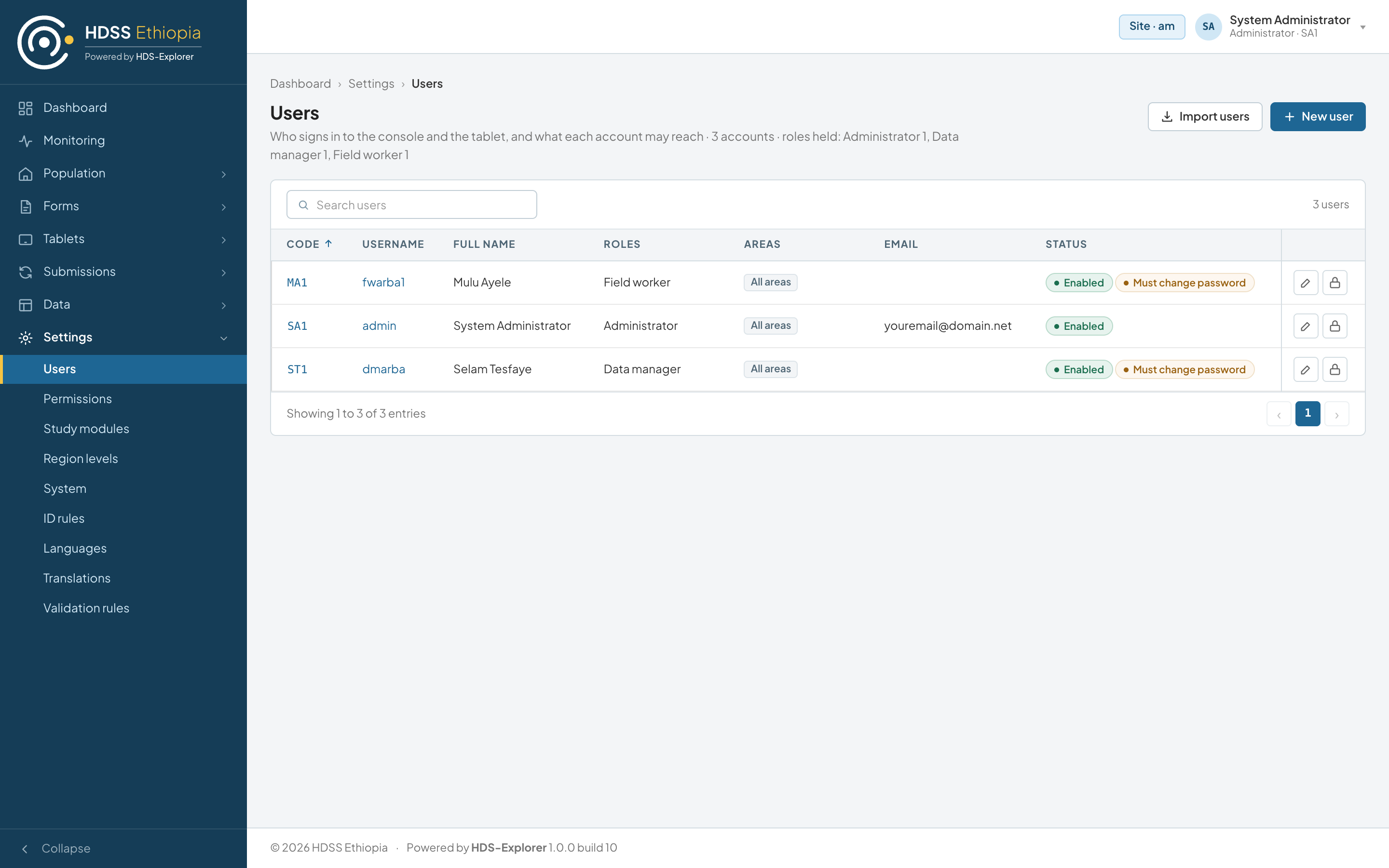
Columns
| Name | Description |
|---|---|
| Code | The user's code, used in the IDs the user creates. Click it to open the user's page. |
| Username | The name the user signs in with. |
| Full name | The user's name. |
| Roles | Administrator, Data manager, Supervisor, Monitor, Researcher or Field worker. |
| Areas | The areas the user works in, or All areas. |
| The user's email address. | |
| Status | Enabled or disabled, and Must change password when the user must choose a new password at the next sign-in. |
Actions
| Action | Description |
|---|---|
| New user | Adds an account. |
| Import users | Adds accounts from a file. |
| Edit | Changes an account's details, roles and areas. |
| Change password | Sets a new password for the account. |
| Lock account (user page) | Stops the account from signing in. |
Permissions
Which role may open which part of the console.
Location: Settings › Permissions
Available to: Administrator
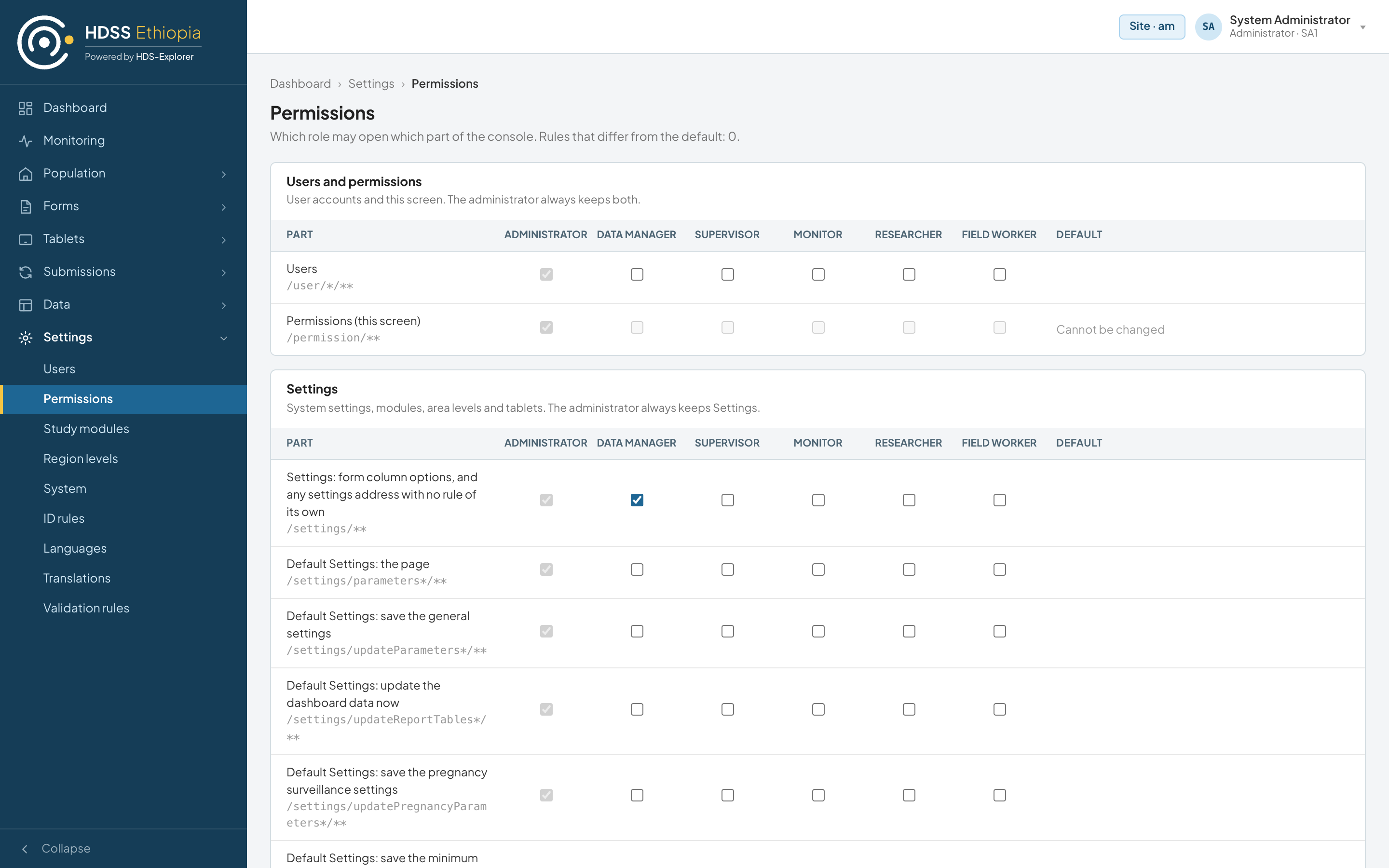
The rules are grouped into Users and permissions, Settings, Forms, Rounds, areas, households and members, Sync and export files, Data validation, Datasets, Reports, Dashboard and Tablet. The screen's subtitle counts the rules that differ from the default.
Columns
| Name | Description |
|---|---|
| Part | The part of the console, with its address. |
| Administrator … Field worker | One column per role. A ticked box lets that role open the part. |
| Default | The roles the part has by default. |
Some rules cannot be changed, such as the rule of this screen. The administrator always keeps Users, Permissions and Settings, so that no one is locked out.
Actions
| Action | Description |
|---|---|
| Save permissions | Saves the changed rules. A role given a part sees its menu entry at once. |
Study modules
Which questionnaires an area, a household or an individual is asked, and which fieldworkers collect them.
Location: Settings › Study modules
Available to: Administrator, Data manager
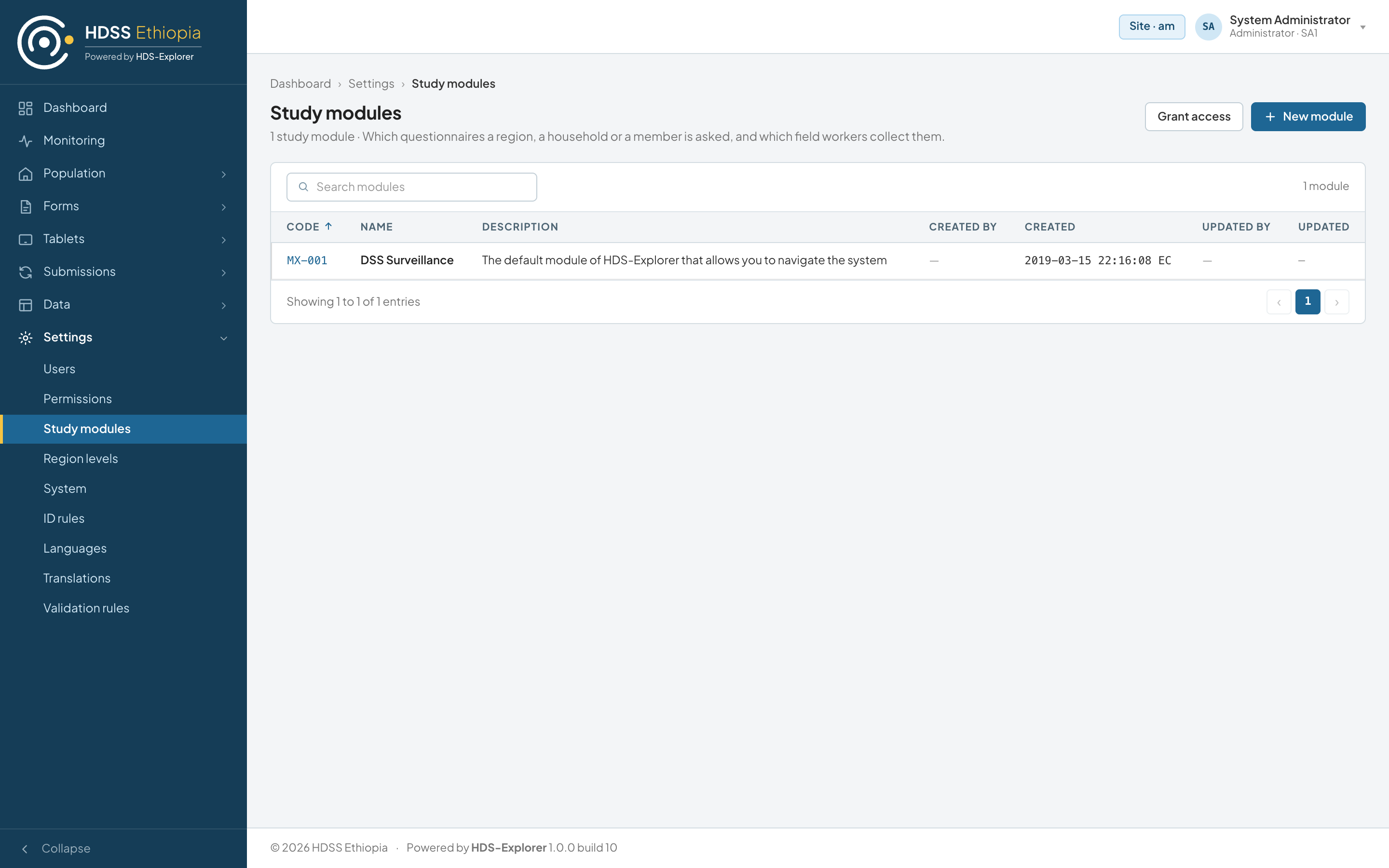
Columns
| Name | Description |
|---|---|
| Code | The module's code. Click it to open the module. |
| Name, Description | The module's name and what it covers. |
| Created by, Created, Updated by, Updated | Who created and last changed the module, and when. |
Actions
| Action | Description |
|---|---|
| New module | Adds a module. |
| Grant access | Gives users access to a module. |
| Edit (module page) | Changes the module. |
Region levels
The names of the area levels in use, from the largest area down.
Location: Settings › Region levels
Available to: Administrator, Data manager
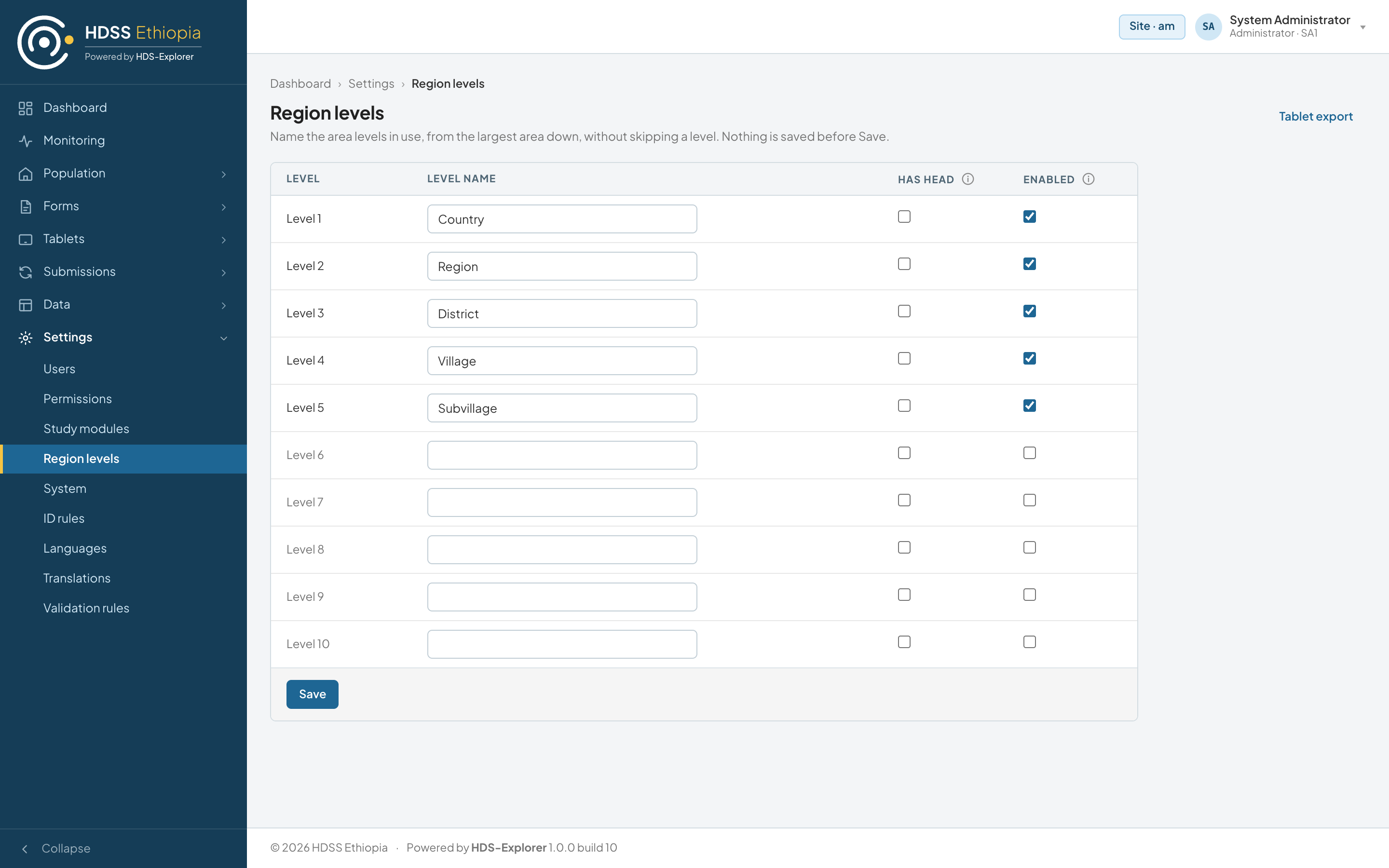
Columns
| Name | Description |
|---|---|
| Level | Level 1 (the largest area) to Level 10. |
| Level name | The name of the level, for example Region, District or Village. Name the levels without skipping one. |
| Has head | Whether an area of this level has a head. |
| Enabled | Whether the level is in use. |
Actions
| Action | Description |
|---|---|
| Save | Saves the levels. Nothing is saved before Save. |
| Tablet export | Opens Tablet export, to send the change to the tablets. |
System
System-wide defaults for the console and the tablets. The screen's title is System settings.
Location: Settings › System
Available to: Administrator
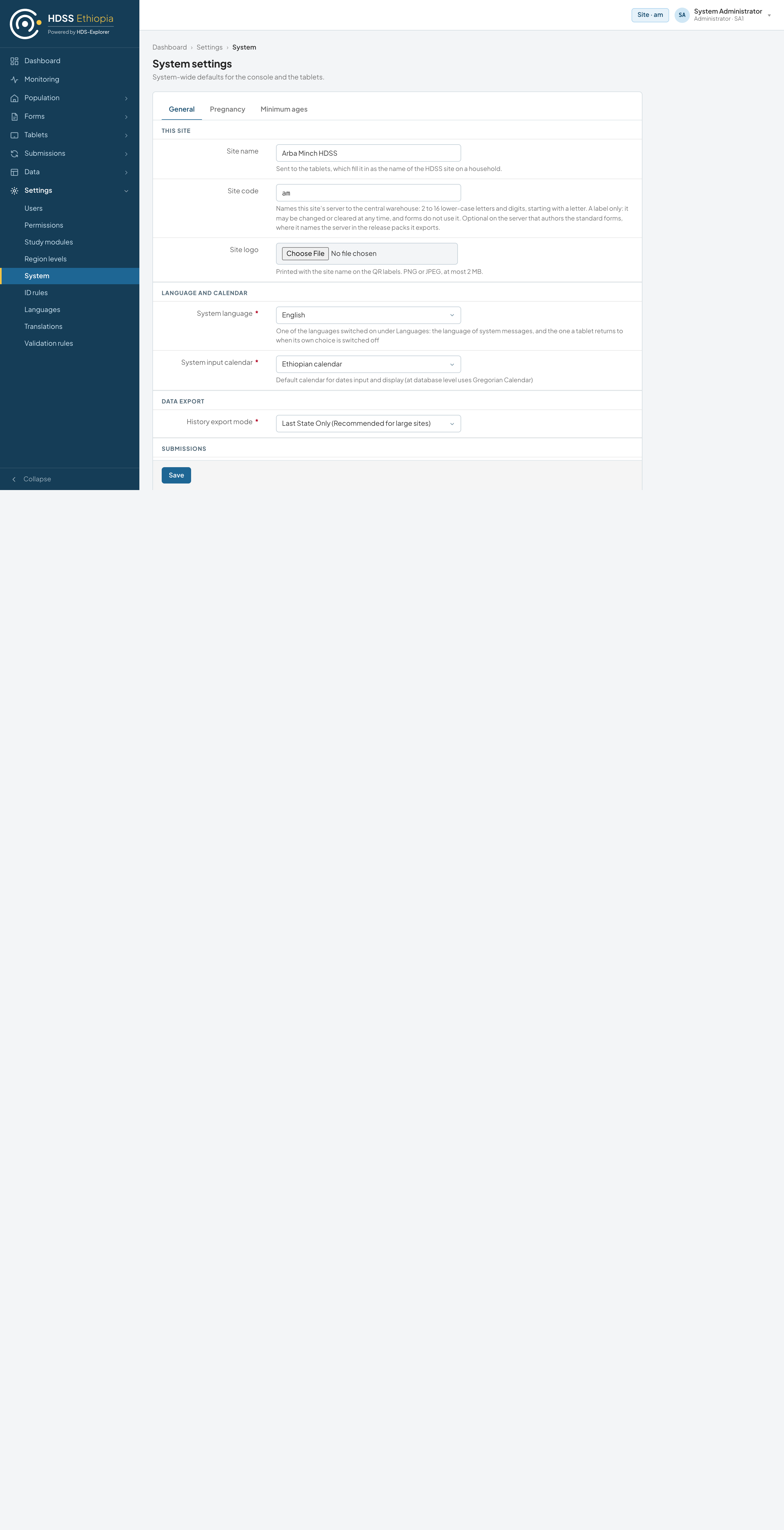
Tabs and sections
| Name | Description |
|---|---|
| General › This site | Site name, Site code and Site logo (printed on the QR labels). |
| General › Language and calendar | System language and System input calendar (Gregorian or Ethiopian). |
| General › Data export | History export mode: Full history or Last State Only. |
| General › Submissions | When data is uploaded: Keep it waiting, Validate it, or Validate and execute it. |
| General › Data collection | Region heads, GPS on visits, one household per location, household pre-registration, export after execution, unions, shared area accounts, and the limits used by the checks, such as Visit GPS radius (metres) and Days to wait after a death before its verbal autopsy. |
| General › Dashboard data | When the dashboard's summary tables are rebuilt. Update now rebuilds them at once. |
| General › Forms | Publishing needs a second person's approval. |
| Pregnancy | The pregnancy surveillance settings. |
| Minimum ages | The minimum ages the checks apply, for example of a head of household. |
Each setting is described in the System settings reference.
Actions
| Action | Description |
|---|---|
| Save | Saves the tab. |
ID rules
How every ID is built: its prefix, its parts, the digits of its running number and its total length. The tablets download these rules with the other settings.
Location: Settings › ID rules
Available to: Administrator
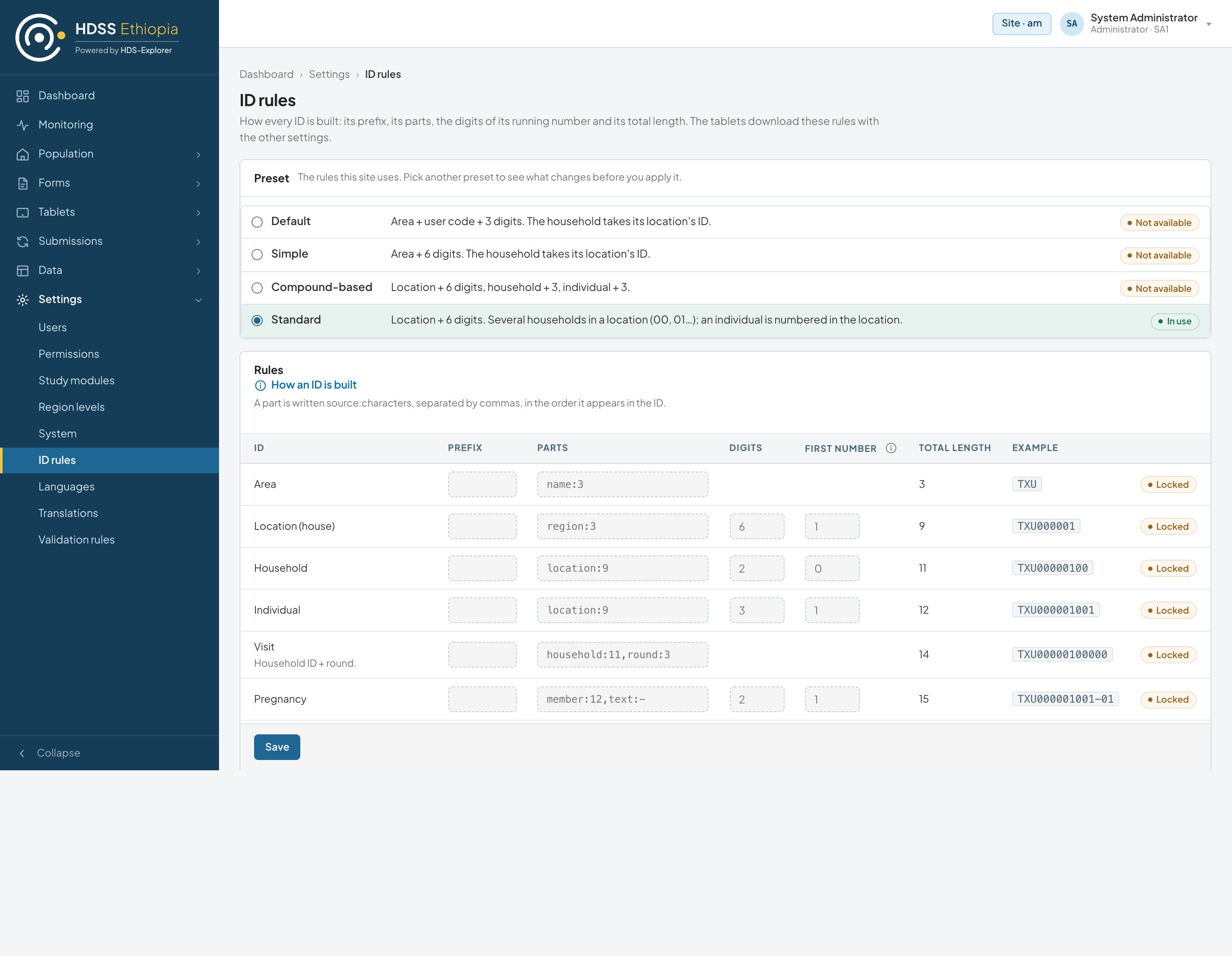
Preset
The site uses one preset: Default, Simple, Compound-based or Standard. The preset in use is marked In use. A preset marked Not available cannot be applied, because records already exist for an ID it would change. Set by the site shows when the rules were edited by hand and match no preset. Pick another preset to see what changes before you apply it.
Columns of the rules
| Name | Description |
|---|---|
| ID | The kind of ID: area, location, household, individual, visit, pregnancy, user, module or follow-up list. |
| Prefix | Fixed text at the start of the ID. |
| Parts | The parts of the ID, written source:characters and separated by commas. |
| Digits | The digits of the running number. |
| First number | The number the count starts at. |
| Total length | The length of the ID. |
| Example | An ID built by the rule. |
| (state) | Locked once records with that kind of ID exist; Open while the rule can still be changed. |
Actions
| Action | Description |
|---|---|
| Save | Saves the open rules. |
| How an ID is built | Explains the parts. |
Languages
The languages the console, the tablets and the form questions are offered in.
Location: Settings › Languages
Available to: Administrator
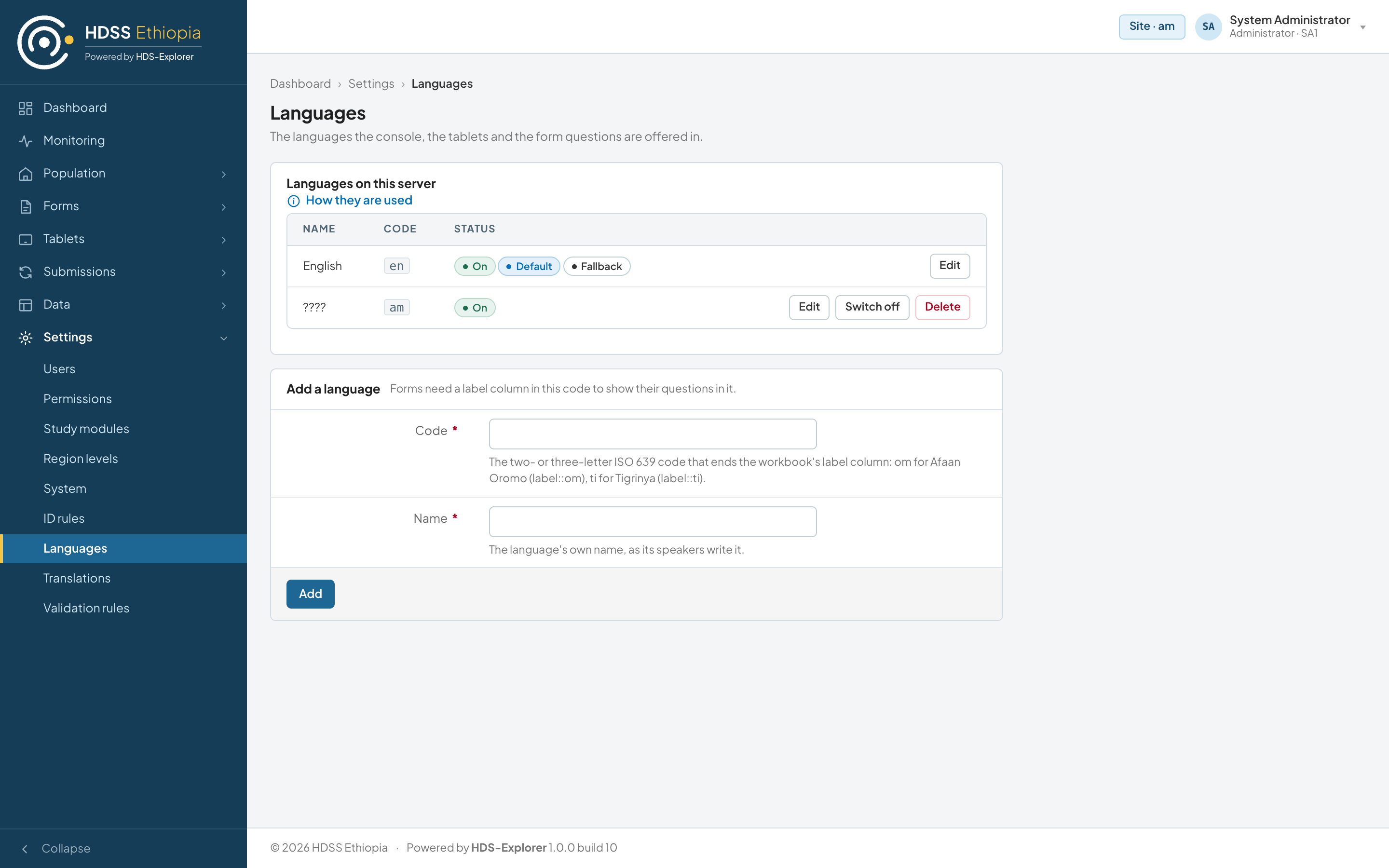
Columns
| Name | Description |
|---|---|
| Name | The language's own name. |
| Code | The ISO 639 code of the language, for example am. |
| Status | On or off; Default for the system language; Fallback for the language used when a text has no translation. |
Fields of a new language
| Name | Description |
|---|---|
| Code | Required. The two- or three-letter ISO 639 code that ends the form file's label column, for example om for Afaan Oromo (label::om). |
| Name | Required. The language's own name, as its speakers write it. |
Actions
| Action | Description |
|---|---|
| Add | Adds the language. |
| Edit | Changes a language's code or name. English keeps its code. Tablets using a changed code return to the default language at their next synchronization. |
| Switch off | Stops offering the language. A tablet using it returns to the system language. |
| Delete | Deletes the language. Tablets using it return to the default language at their next synchronization. |
Translations
The texts of the console and the tablet in each language, edited here or as a spreadsheet.
Location: Settings › Translations
Available to: Administrator, Data manager
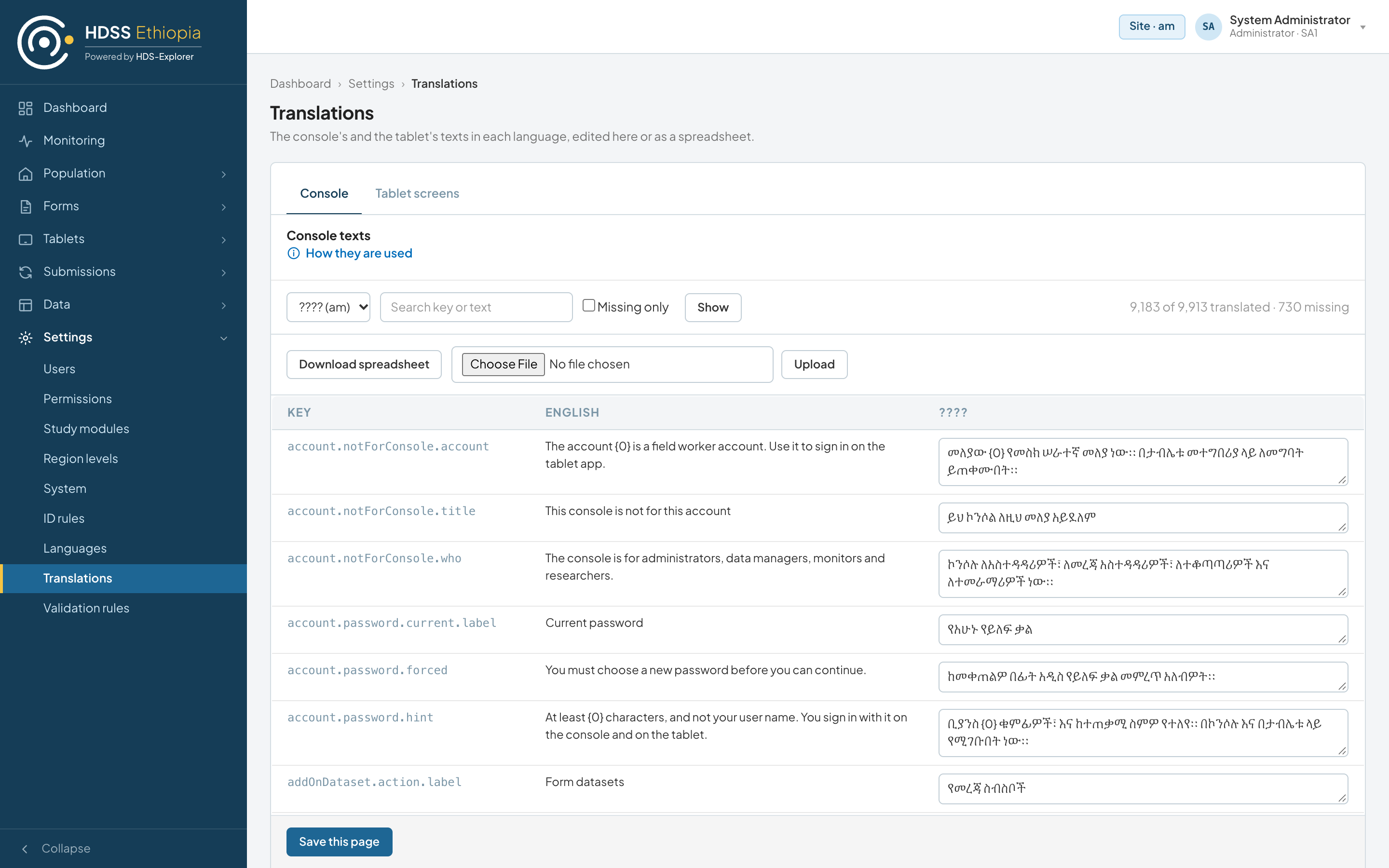
Columns
| Name | Description |
|---|---|
| Key | The text's key. |
| English | The English text. |
| (language) | The translation in the chosen language. |
Actions
| Action | Description |
|---|---|
| Console, Tablet screens | Chooses which texts to translate. |
| Language, Missing only, Show | Chooses the language, and whether to list only the texts with no translation. The count of texts translated and missing shows above the table. |
| Save this page | Saves the translations typed on the page. |
| Download spreadsheet | Downloads the texts as a spreadsheet to translate outside the console. |
| Upload | Uploads a translated spreadsheet. |
Validation rules
The checks every uploaded record is put through, and where they are holding records back.
Location: Settings › Validation rules
Available to: Administrator, Data manager
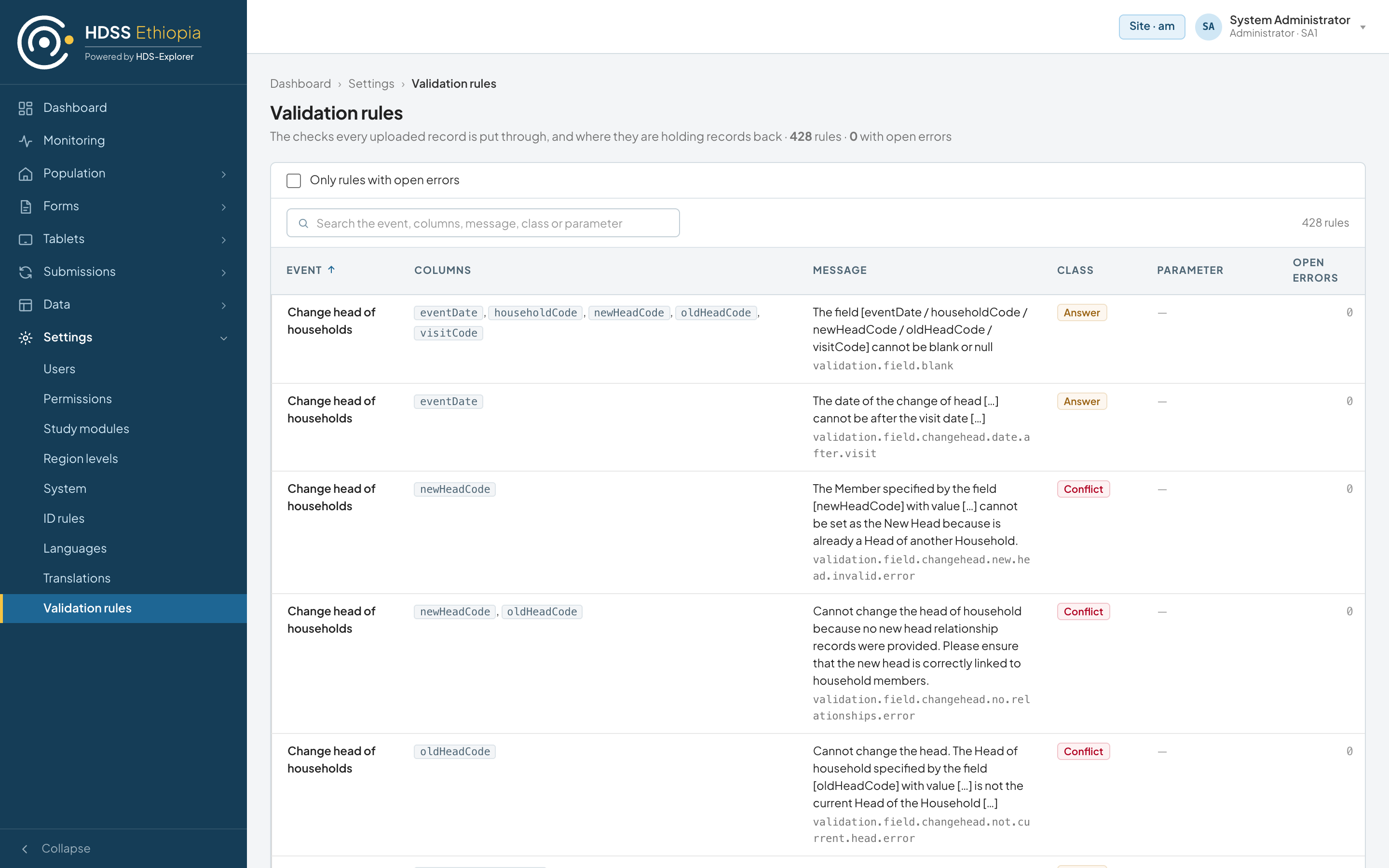
Columns
| Name | Description |
|---|---|
| Event | The kind of record the rule checks. |
| Columns | The fields the rule reads. |
| Message | The message a rejected submission shows, with its message key. |
| Class | The kind of check: Answer (a value that is wrong), Conflict (a value that disagrees with the register) or Dependency (a record that does not exist). |
| Parameter | The setting the rule uses, with its value, for example a minimum age. |
| Open errors | The number of records the rule holds back now. |
Actions
| Action | Description |
|---|---|
| Only rules with open errors | Lists only the rules that hold records back. |