Languages and translations
Switch on the languages that the console, the tablets and the form questions are offered in, such as Amharic, and adjust the wording of labels.
Before you begin
- Required role: Administrator for Languages; administrator or data manager for Translations
- Prerequisites: System settings are saved.
A language is used in three places:
- Console: the user menu lists the languages. Console text that has no translation shows in English.
- Tablet screens: tablets download the list with the other settings, and offer it under Settings › Language on the tablet. A language that the tablet application has no text for shows its screens in English.
- Form questions: a form shows its questions from the workbook column for the tablet's language, for example
label::amfor Amharic. Where a form has no text in that language, the English text is shown.
Add and switch on a language
-
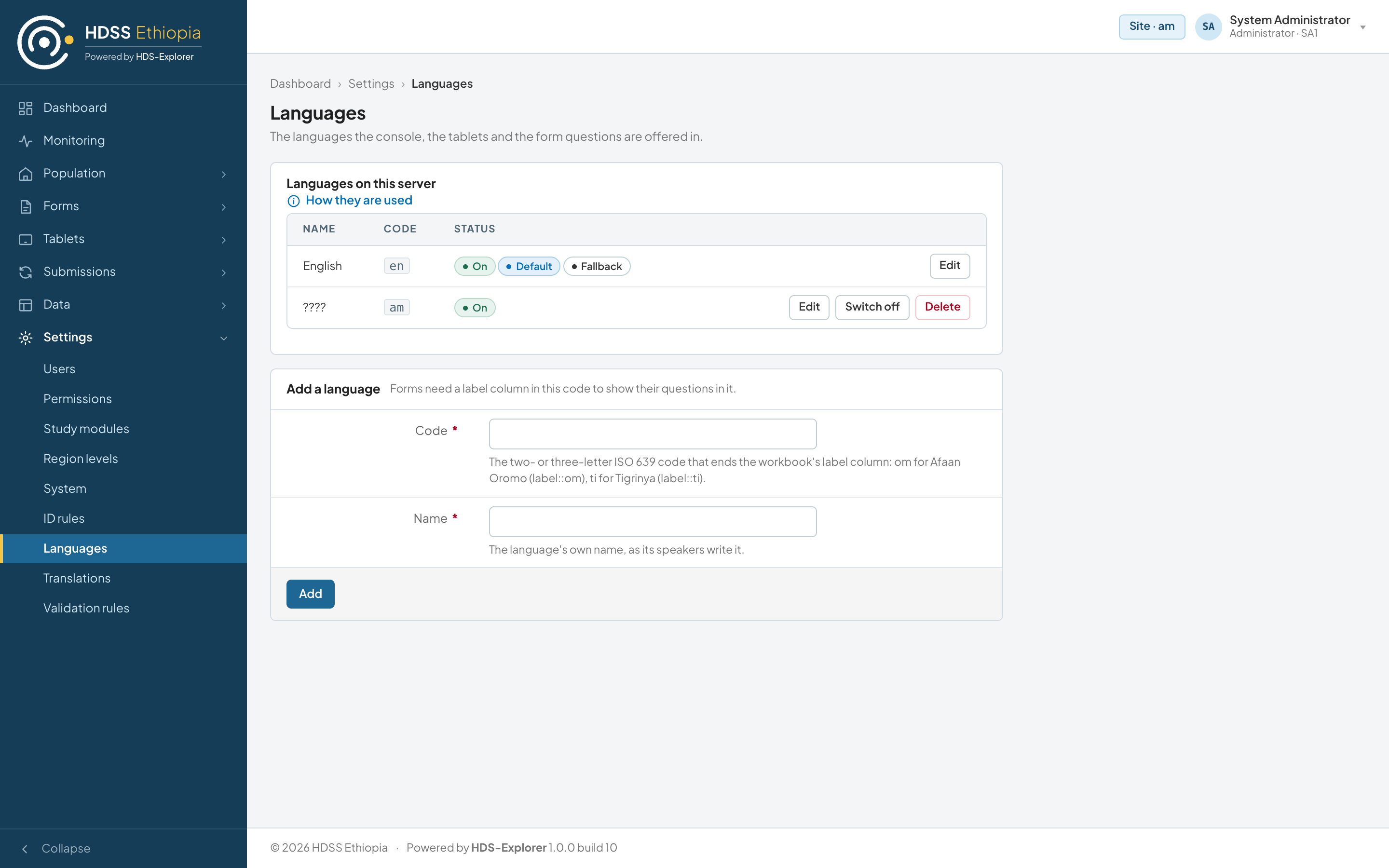
Open Settings › Languages. The table lists the languages on this server, with their Name, Code and Status.
-
Under Add a language, enter the Code: the two- or three-letter ISO 639 code, which is also the ending of the form label column. For example
amfor Amharic,omfor Afaan Oromo ortifor Tigrinya. - Enter the Name as the language's speakers write it, for example አማርኛ.
- Select Add. The language is added and switched on.
Switch a language off or delete it
- To stop offering a language but keep it for later, select Switch off on its row. A tablet using that language returns to the system language at its next synchronization. Select Switch on to offer it again.
- To remove a language completely, select Delete. To use it again you must add it again.
- To change a language's code or name, select Edit on its row.
English and the system language cannot be switched off or deleted. To remove the current system language, first choose another System language under Settings › System.
Edit translations
-
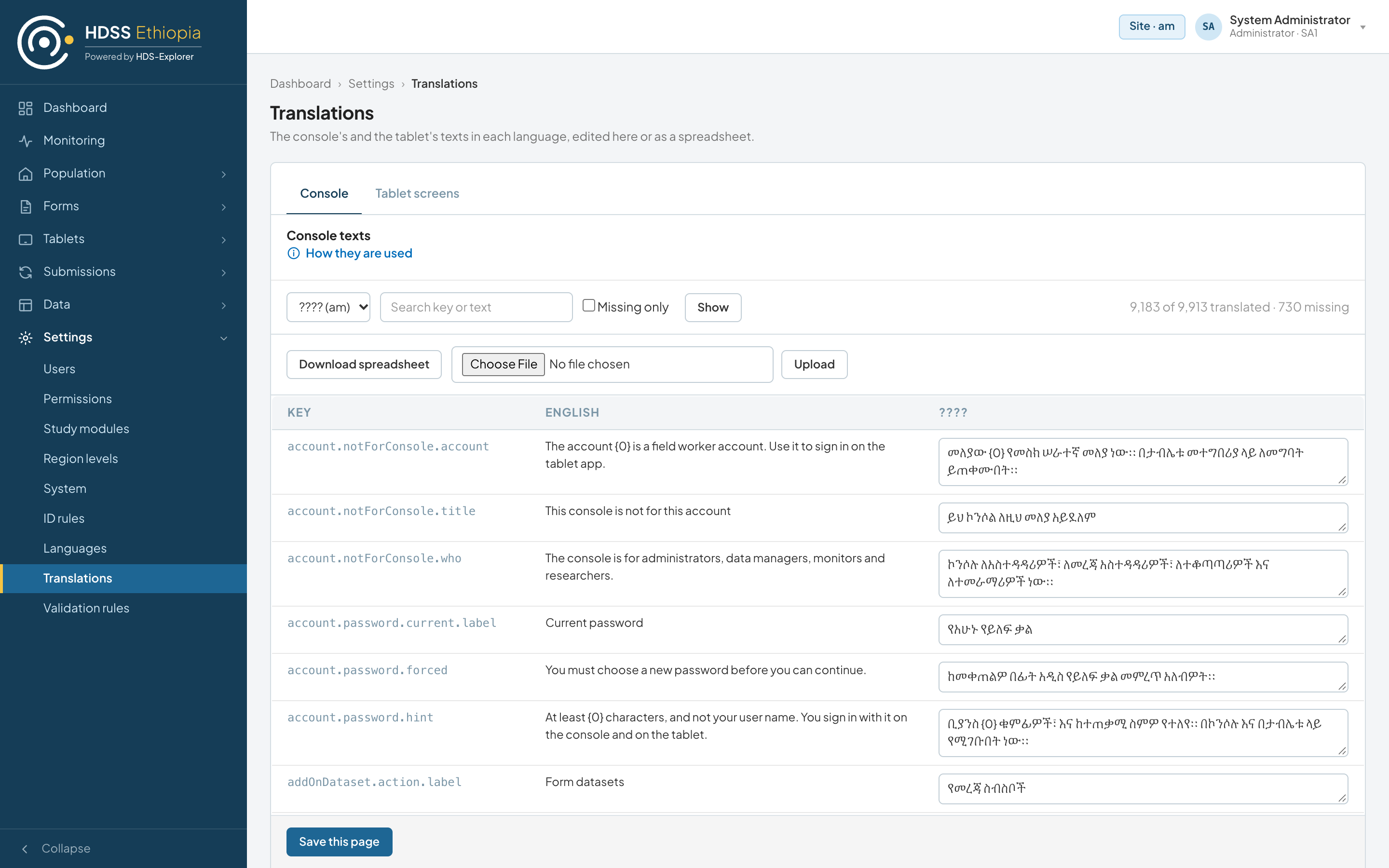
Open Settings › Translations.
-
Choose Console or Tablet screens.
- Choose the language, and search by key or text. Select Show. Tick Missing only to list only the texts not yet translated.
- Type the translated text in the language column, then select Save this page. To return to the text that came with the application, save the original text or an empty field.
To translate many texts at once:
- Select Download spreadsheet. The file has the key, the English text and one column per language.
- Fill or change a language column. A blank cell changes nothing.
- Choose the file and select Upload.
Keep placeholders such as {0} (console) and %1$s (tablet) where the English text has them: a name or number is inserted there.
Result
The language appears in the console's user menu and, after the next settings download, in the tablet's language list. A translation saved for the console applies at once; a translation for the tablet applies after the settings export and the tablet's next synchronization.