Forms and study modules
Bring the standard forms to the site with a release pack, decide which forms and study modules are in use, and add the site's own questions where needed.
Before you begin
- Required role: Administrator to import a release pack; administrator or data manager for forms, study modules and form options
- Prerequisites: User accounts exist. You have the release pack file (a
.zip) from the team that maintains the standard forms.
What comes with the server
Every form is one of three kinds:
- Core events record demographic events and changes to the register.
- Core observations are standard questionnaires that every site runs.
- Add-on forms are the optional health and socio-economic modules.
| Kind | Forms |
|---|---|
| Core event | Visit Registration (opens each household visit), Region Registration, Location Registration, Household Registration, Household Pre-registration, Member Enumeration (lists the individuals of a household), Change of Head of Household, Change of Proxy Head of Household, Change of Head of Region, Marital Relationship, Internal In Migration, External In Migration, Out Migration, Household Relocation, Pregnancy Registration, Pregnancy Visit Follow-up, Pregnancy Outcome, Death Registration, Member Update, Household Correction, Member Correction |
| Core observation | SES (socio-economic status of the household), Verbal Autopsy (WHO 2016 verbal autopsy, Ethiopian edition) |
| Add-on | For example Family Planning, Immunization, HPV Vaccination, Morbidity, NCD Risk Factors, Mental Health and Substance Use, Food Insecurity, Poverty Measurement |
The Form catalogue describes each form.
Forms with the source Standard come from the team that maintains the standard and are locked at the site. The site can switch them on or off, choose their study modules and add its own questions. A Site form is the site's own; its ID and every question it asks start with s_.
Import a release pack
Standard forms reach a site only in a release pack.
-
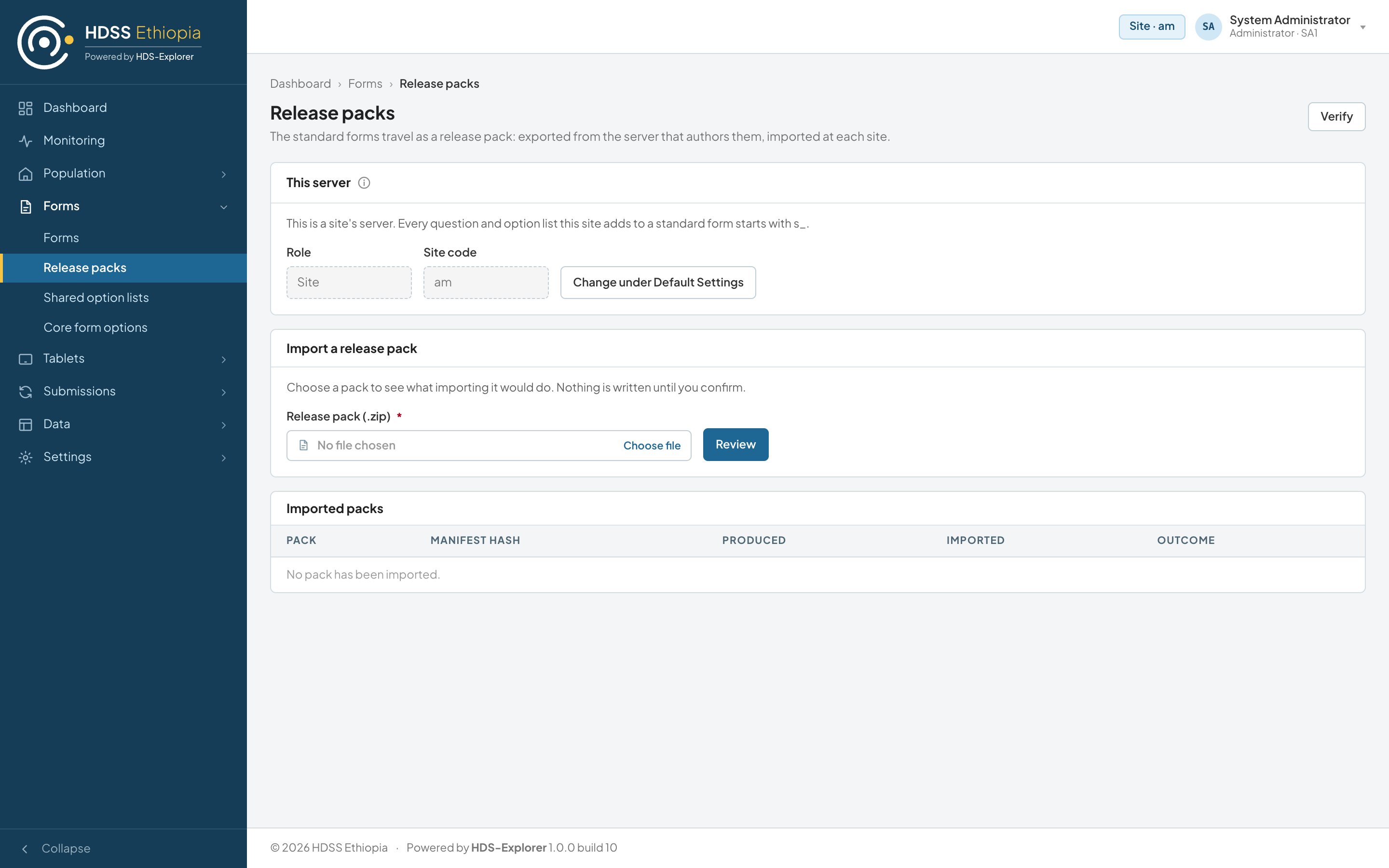
Open Forms › Release packs. Under This server, the Role is Site.
-
Under Import a release pack, choose the Release pack (.zip) file and select Review. Nothing is written yet.
- Check the outcome for each form: New form, New version, Unchanged, Conflict or Refused. For a new version, the page lists the questions added, removed, renamed or retyped.
- Select Import. Each form is imported on its own: a form with a conflict, or one that fails, is left as it was and the others are imported.
- Check the result page, which lists what happened to each form. The pack appears under Imported packs.
If the site has added its own questions to a standard form, they are carried onto the new standard version where possible and published with it. Where they cannot be carried forward, the standard version is published and the site copy stays unpublished until an edited copy is uploaded.
To check that the forms on the server are exactly what their packs delivered, select Verify. Every version should show Matches its pack.
Switch forms on or off
-
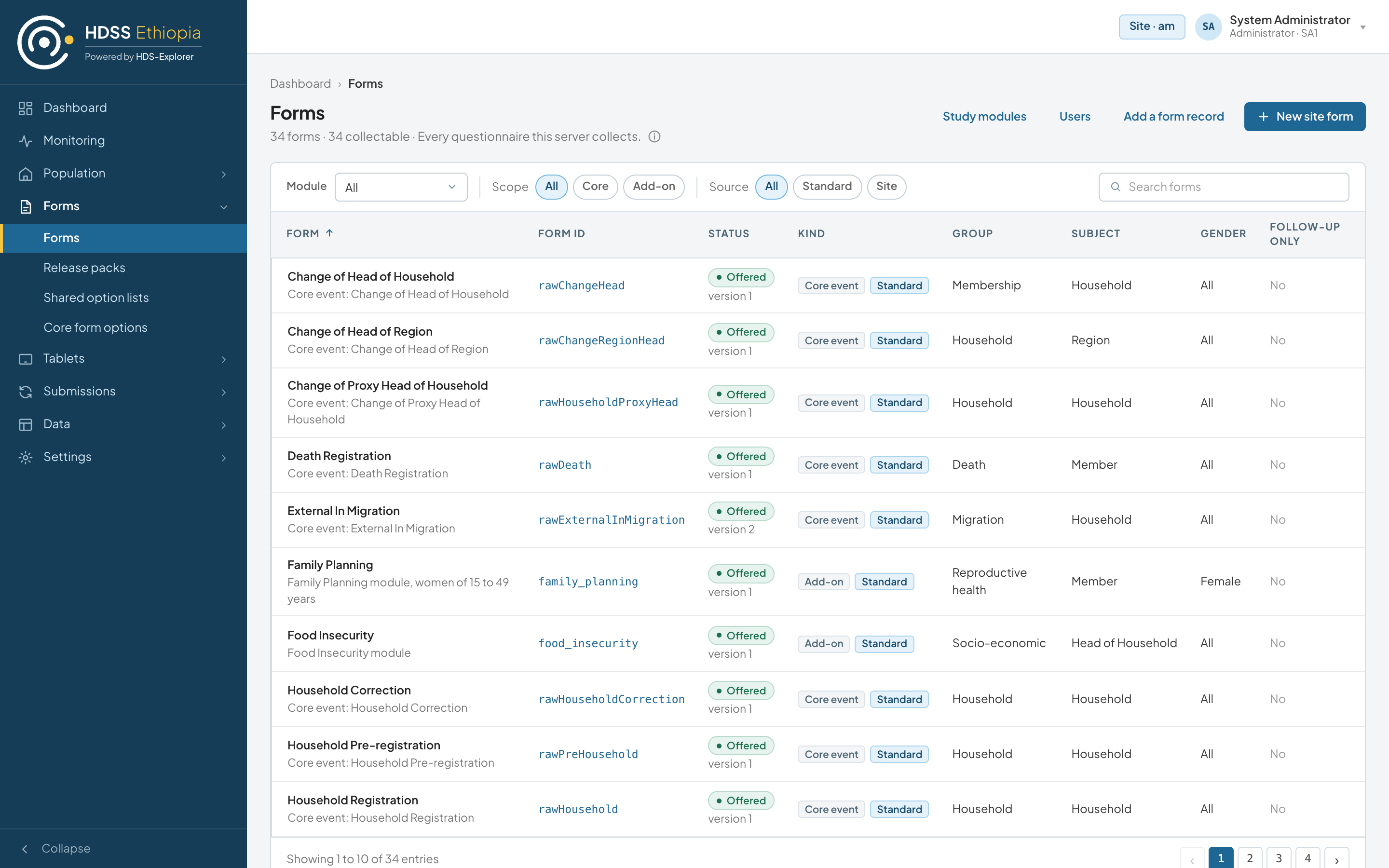
Open Forms › Forms. Filter the list by Module, Scope or Source if needed.
-
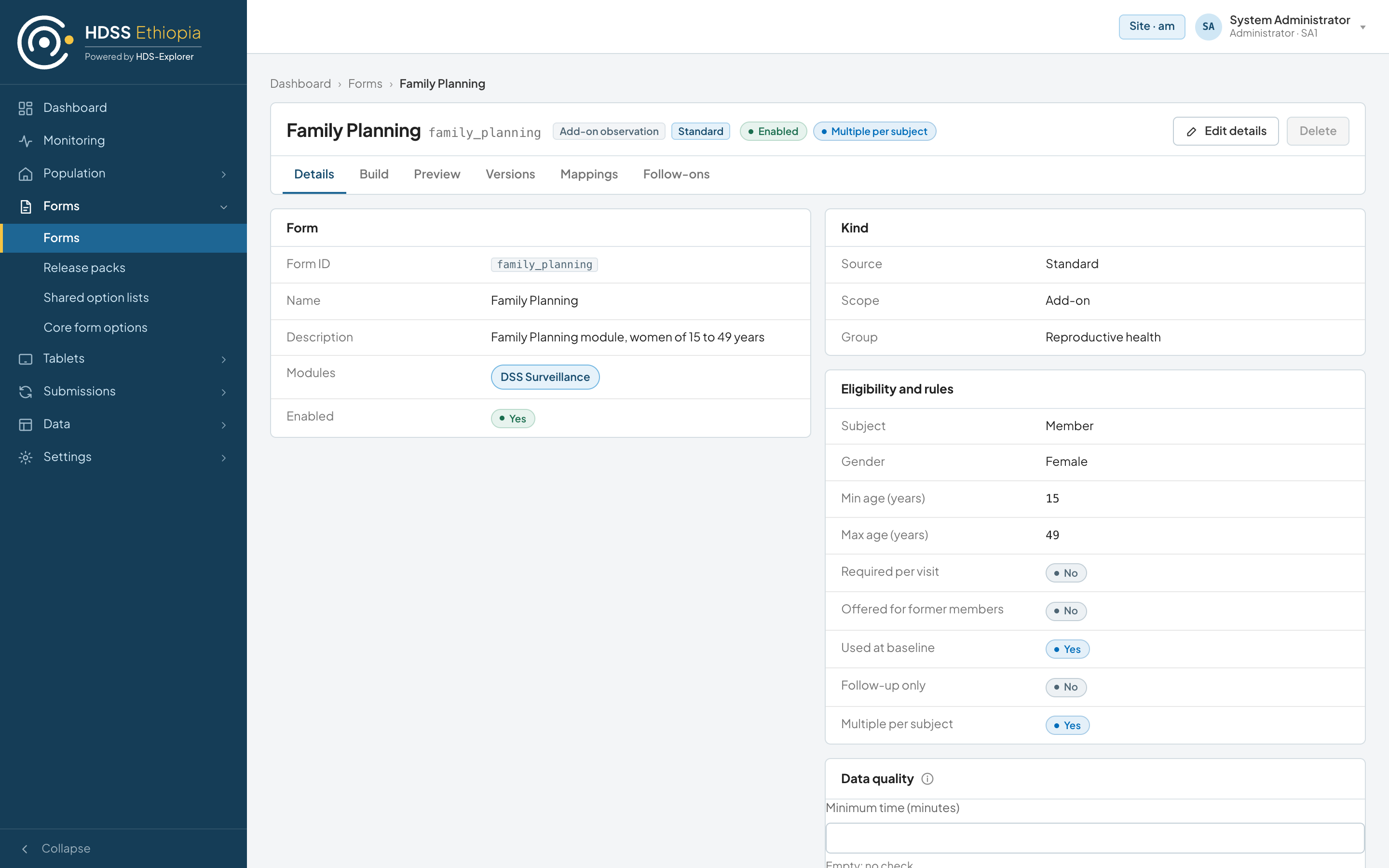
Select a form, then select Edit details.
-
Under Availability, tick or clear Enabled, and tick the Modules whose fieldworkers collect the form.
- Select Save.
On a standard form only the modules and Enabled can be changed; the other details arrive in the release pack. The details page shows, for example, the form's subject, gender and age band, and whether it is Used at baseline. A form that is not used at baseline is not offered in visits of round 0, and the server refuses its records from round 0.
Set up study modules
A study module decides which forms an area, household or individual is asked, and which fieldworkers collect them. Every server has the default module DSS Surveillance. Most sites need no other module.
To add one:
-
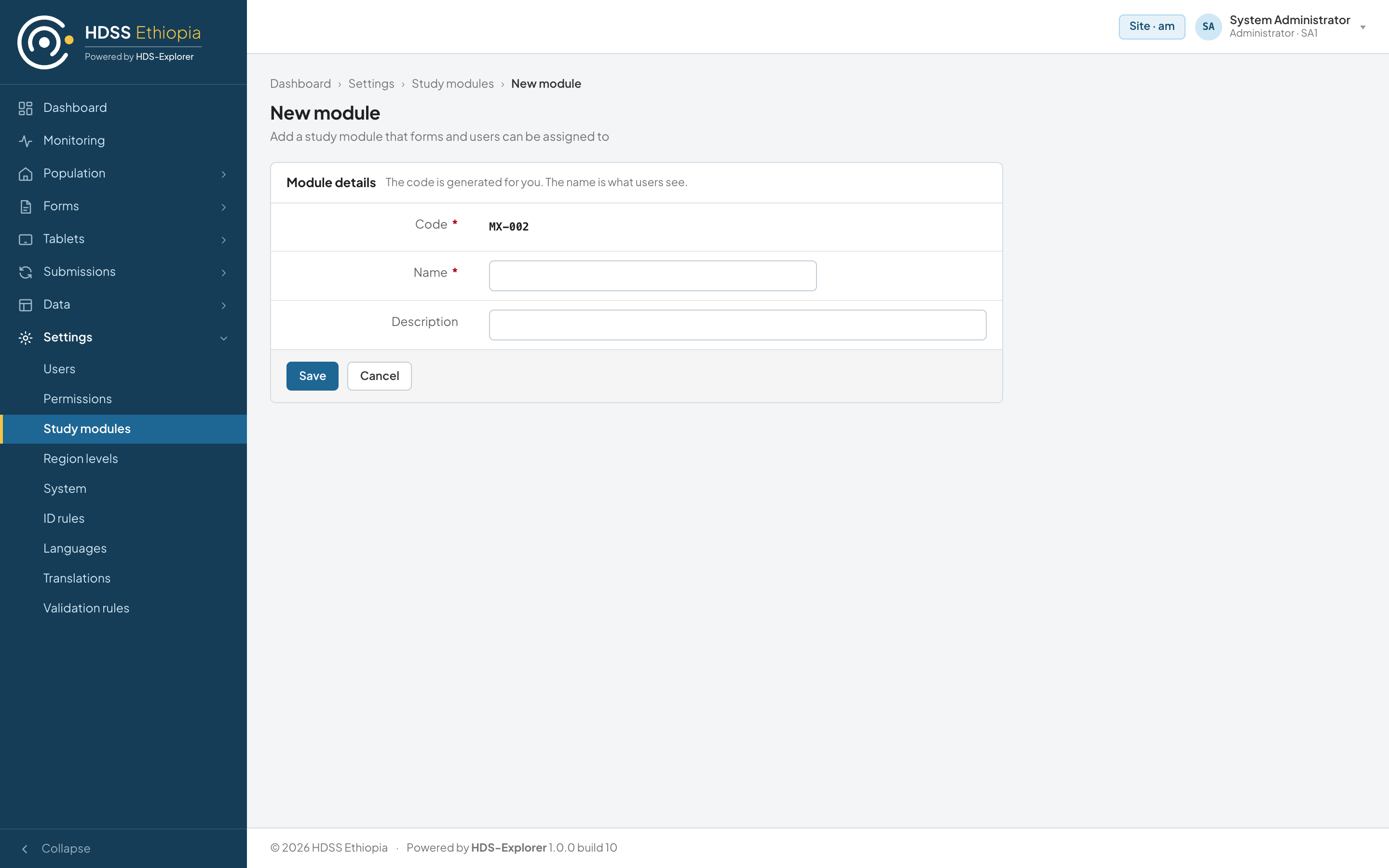
Open Settings › Study modules, then select New module. The code is generated.
-
Enter the Name and, optionally, a Description, then select Save.
- Give records access to the module: select Grant access, choose the Grant mode (All entities, or Use CSV codes list to upload the codes of specific areas, households or individuals), choose the module and confirm.
- Assign the module to forms (see above) and to users (see User accounts).
Add the site's own questions
To add site questions to a standard form, open the form, go to Build and use Add site questions. To make a completely new form, select New site form on the Forms page. Every site question starts with s_. The Forms page of the Console User Guide describes the Form Builder.
Before a draft is published, try it on a tablet: on the draft version, use Test on a tablet to choose testers, then select Send to testers. Each tester finds the draft under Test forms on the tablet after the next synchronization. Test records never reach the register.
Core form options and shared option lists
- Forms › Core form options holds the answer choices of the core event forms. Choose a Form and a Column, then edit its options. Change these only before data is collected: changing or removing a value can make existing records inconsistent. Restore defaults returns a column to its original options.
- Forms › Shared option lists holds lists, such as Yes/No codes, that the Form Builder copies into new forms. Changing a shared list does not change any existing form.
Result
The Forms list shows each form with its status. The tablets receive enabled forms, and changed core form options, with the next settings download.