Account and labels
Your account menu and password, the QR labels of locations and households, and the site logo printed on them.
The roles listed under Available to are the default roles. An administrator can change them on Permissions.
Account menu
Your name, role and user code, at the top right of every console page. Click it to open the menu.
Location: the top bar of every page
Available to: Every signed-in user
| Name | Description |
|---|---|
| Language | The language the console is shown in. Only the languages switched on under Languages are offered. |
| Change password | Opens Change password. |
| Sign out | Ends your session. |
Next to the menu, a label says what this server is: Site · followed by the site code, Site · no code before the site code is set on System, or Authoring server on the server that authors the standard forms.
Change password
Sets a new password for your own account. You sign in with it on the console and on the tablet.
Location: account menu › Change password
Available to: Every signed-in user
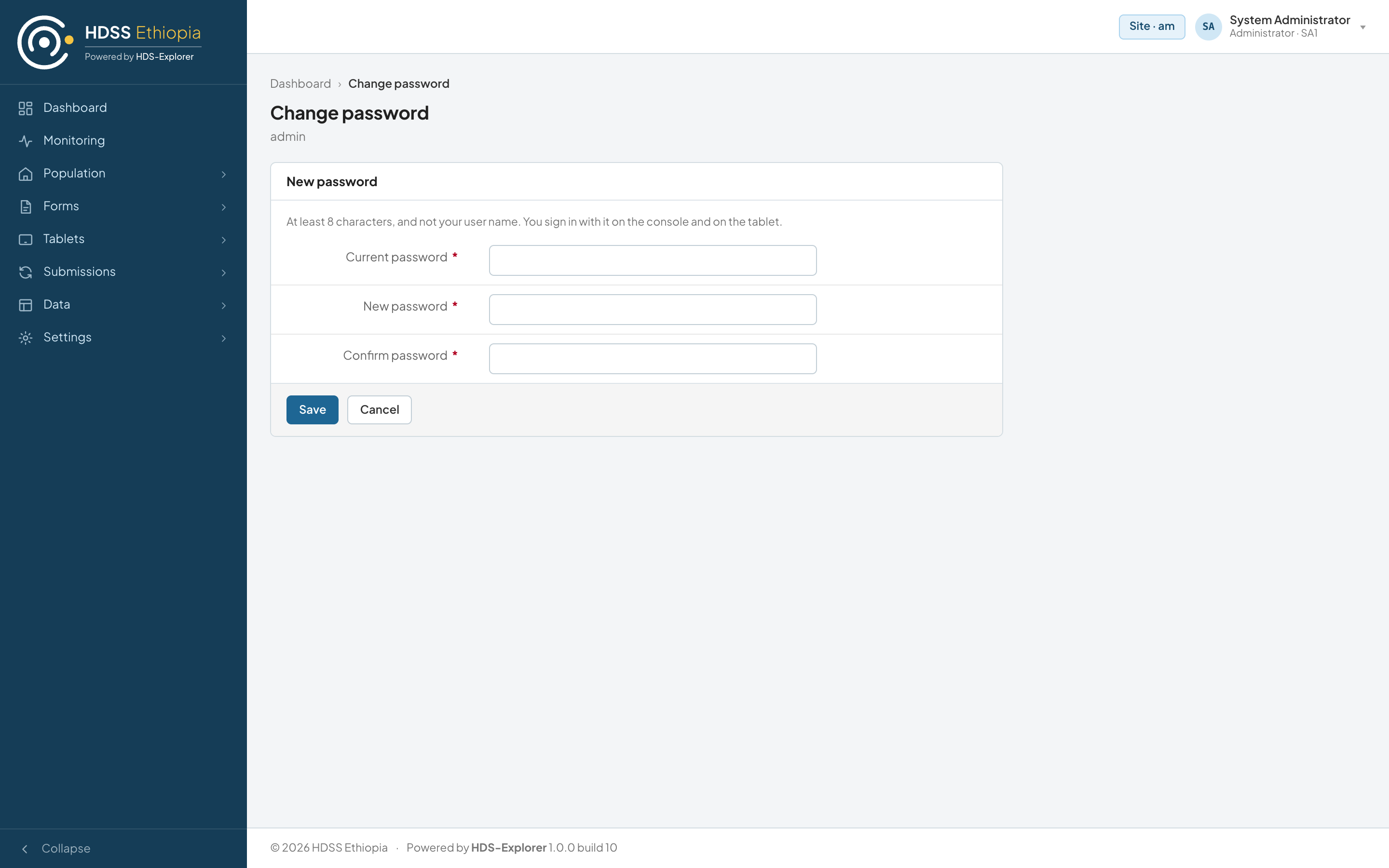
Fields
| Name | Description |
|---|---|
| Current password | Required. Your password now. |
| New password | Required. At least 8 characters, and not your user name. |
| Confirm password | Required. The new password again. |
Actions
| Action | Description |
|---|---|
| Save | Saves the new password. |
| Cancel | Returns to the dashboard without a change. |
A user whose account is marked Must change password is brought to this screen after signing in and cannot continue until the password is changed.
QR labels
Printed labels with the QR code of a location or a household.
Location: a location's or household's page › Show QR; an area's page › Print QR labels
Available to: Administrator, Data manager, Supervisor
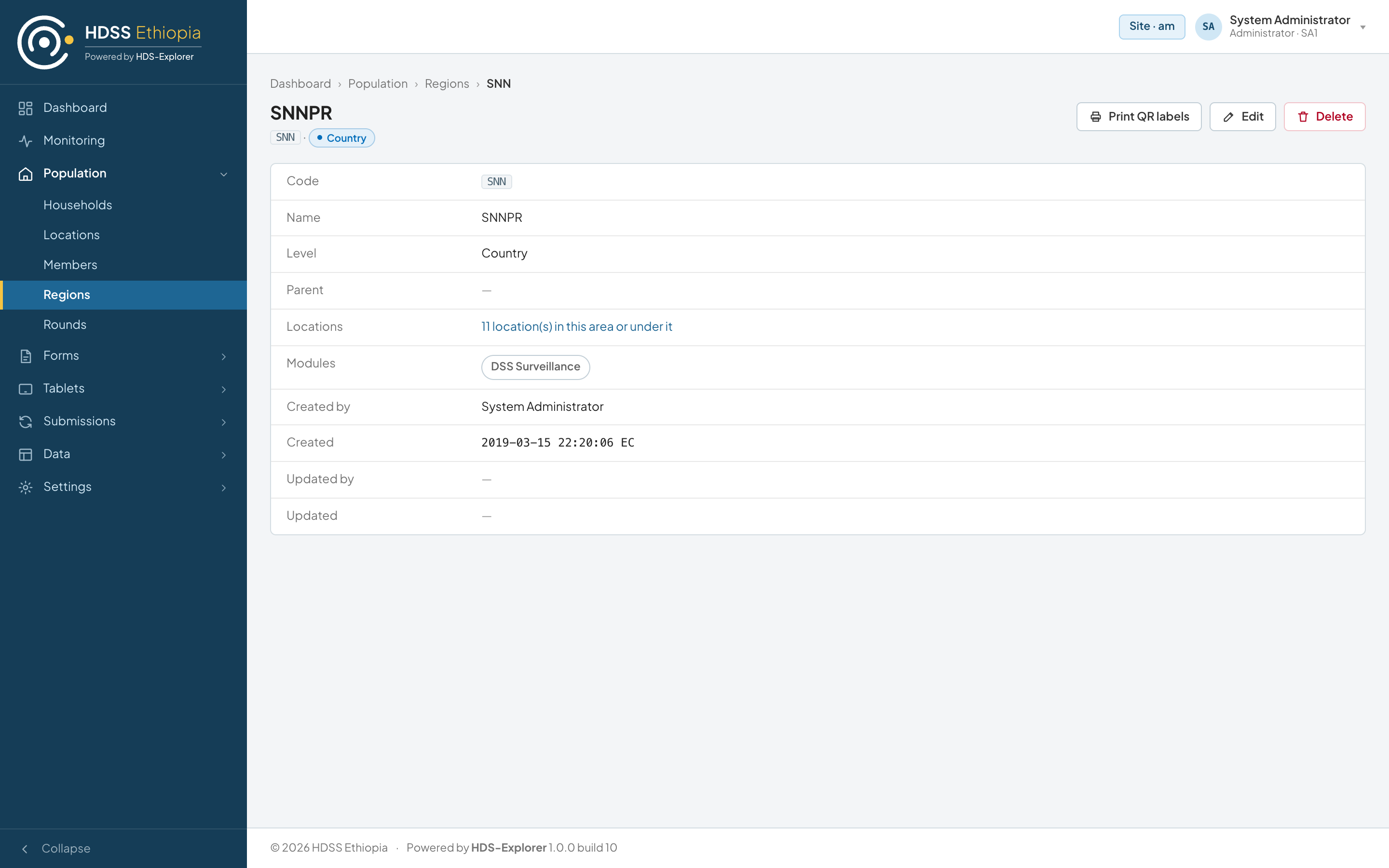
One label
On a location's or household's page, Show QR shows the QR code. Print label opens the label as a PDF in a new tab, at the top left of an A4 page of six labels. Print at actual size.
The labels of an area
On an area's page, Print QR labels opens these choices:
| Name | Description |
|---|---|
| Print the labels of | Locations or Households. |
| Collected | Any time, In a round (choose the round), or Between two days (From and To). A location or household counts when it was collected in that period. |
| Labels per page | How many labels each A4 page holds. |
| Include ended ones | Also print locations that no longer exist and households no one lives in. |
Print creates the pages, cut along the dashed lines. Each lowest-level area starts a new page. For a large number of labels, the console asks you to confirm first. Print at actual size.
Site logo
The site's logo, printed with the site name on the QR labels.
Location: Settings › System › This site › Site logo
Available to: Administrator
| Name | Description |
|---|---|
| Site logo | A PNG or JPEG image, at most 2 MB. |
| Site name | Printed next to the logo, and sent to the tablets as the name of the HDSS site. |
See System.