System settings
Set the site identity, language and calendar, how uploaded data is processed, and the household, GPS and pregnancy rules. Do this first on a new server, before any other configuration.
Before you begin
- Required role: Administrator
- Prerequisites: You can sign in to the server console. See Initial sign-in.
The System settings page has three tabs: General, Pregnancy and Minimum ages. Each tab has its own Save button. If you switch tabs or leave the page with unsaved changes, the console asks before it discards them.
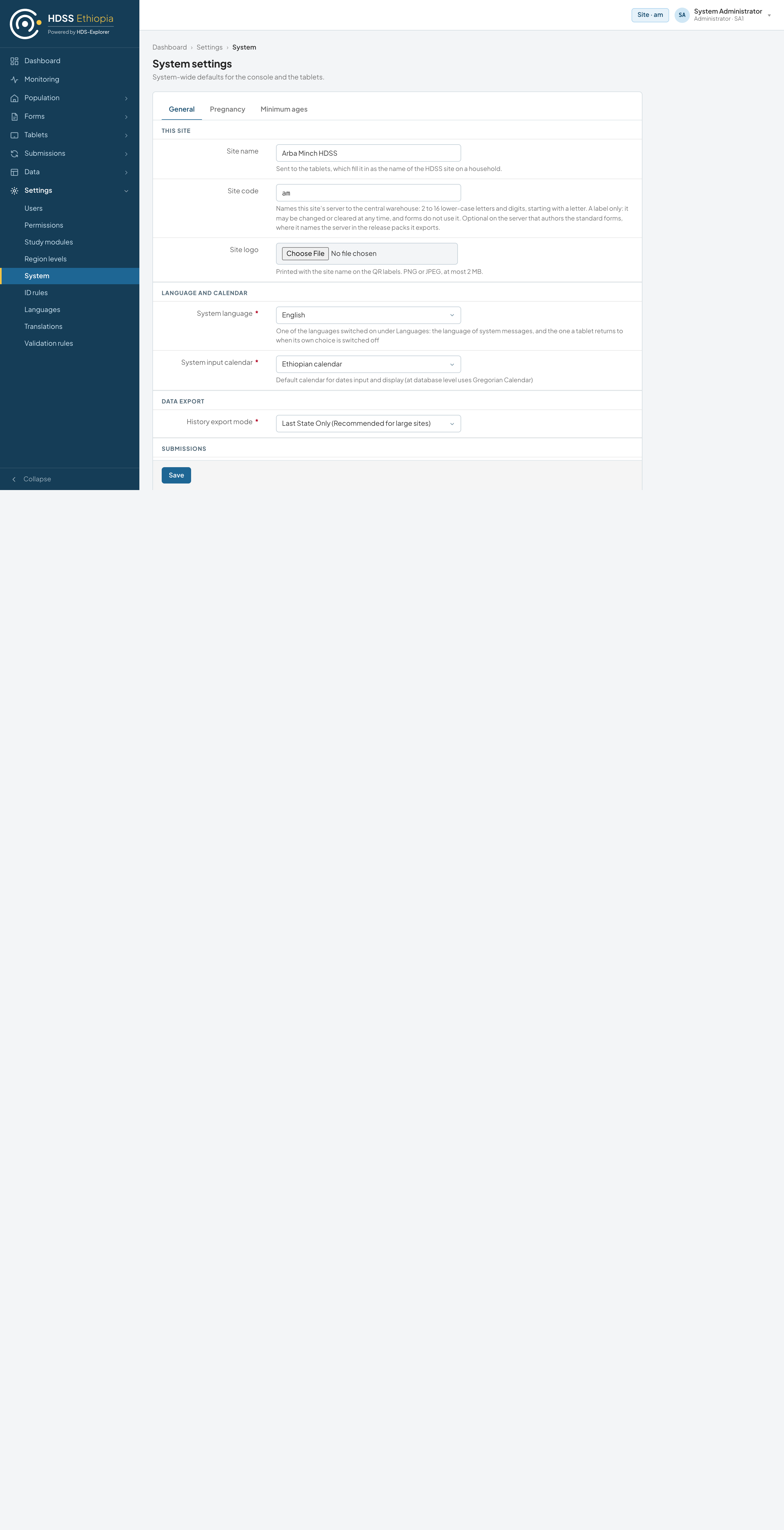
Set the general settings
- Open Settings › System. The General tab opens.
- Under This site, fill in:
- Site name: the full name of the HDSS site, for example "Arba Minch HDSS". Tablets fill it in as the site name on each household.
- Site code: a short code for this server, used to identify it to the central warehouse. Use 2 to 16 lower-case letters and digits, starting with a letter, for example
am. It is a label only: forms do not use it, and you can change it later. - Site logo: choose a PNG or JPEG file of at most 2 MB. It is printed with the site name on QR labels.
- Under Language and calendar, choose:
- System language: the language of system messages, and the language a tablet returns to when its own language is switched off. Only languages switched on under Languages are offered. See Languages and translations.
- System input calendar: Gregorian calendar or Ethiopian calendar. This is the calendar in which dates are entered and shown. Dates are always stored in the Gregorian calendar, so you can change this later without changing data. Choose the calendar that fieldworkers and data managers use day to day.
- Under Data export, choose the History export mode. This decides how much history the tablet export carries:
- Full history: every past residency and relationship of each individual.
- Last State Only (Recommended for large sites): only the current state. Choose this unless fieldworkers need the full history on the tablet; it keeps downloads small and fast.
- Under Submissions, choose what happens When data is uploaded. See Choosing how uploads are processed below.
- Under Data collection, set each switch to Yes or No, and fill in the numbers. See Data collection settings.
- Under Dashboard data, choose when the dashboard numbers are updated. See Dashboard data.
- Under Forms, set Publishing needs a second person's approval. See Forms.
- Select Save. The console confirms that the settings were updated.
Choosing how uploads are processed
When data is uploaded decides what the server does with the records that tablets upload.
| Option | What happens |
|---|---|
| Keep it waiting | Records wait until someone runs Validate & execute. Nothing is checked until then. |
| Validate it | Shortly after uploads pause, the waiting records are checked, so the Review page shows what would be refused. Nothing is written to the register until a data manager runs Validate & execute. Uploads are never held up. |
| Validate and execute it | Records are checked and written to the register as they arrive. Records that are flagged are not held for review. |
Recommendation: choose Validate it. The data manager sees problems as soon as data arrives, but still decides when records enter the register. Choose Validate and execute it only when the data manager reviews rejected submissions every day and the team trusts the checks. See Data submission lifecycle.
Data collection settings
| Setting | What it means | Recommendation |
|---|---|---|
| Region heads | Whether areas can have a head of their own (for example a kebele leader), recorded on the tablet. Works together with Has head on the region levels. | No, unless the site records area leaders. |
| Require GPS on visits | Whether a visit must have GPS coordinates. | Yes for sites with reliable GPS reception. |
| One household per location | Yes: a location (dwelling) holds one household at a time; a new household can only be registered in, or move into, an empty location. No: several households can share a location, as in a compound. If the identifier rules give a household the same ID as its location, this setting is forced on and cannot be changed. | Match the way the site's dwellings are organized. |
| Household pre-registration | Yes: a fieldworker can first list a household (area, code, name and modules only) and complete its registration later, possibly on another tablet. No: a household is registered in one pass. | No, unless the baseline starts with a listing pass. |
| Export after execution | Yes: the Households and Events tablet exports start by themselves after records are executed or changed on the console. No: a data manager runs them from Tablet export. | Yes. |
| A man may have more than one open union | Yes: a man may have more than one current marriage (polygamy). No: a second open union is refused for anyone. A woman's second open union is always refused. | Match local practice in the surveillance area. |
| Share area accounts with tablets | Yes: a tablet also receives the accounts of fieldworkers who share an area with the user who downloads, so they can sign in on the same tablet. No: only that user's account. | Yes when tablets are shared within a team. |
| Visit GPS radius (metres) | A visit recorded farther than this from the location's stored GPS point shows a warning on the tablet and asks for a reason. The visit is never refused. Default: 100. | Keep 100. |
| Fewest weeks between two pregnancy outcomes | A pregnancy outcome dated less than this many weeks after the mother's previous outcome is refused on the tablet and at execution. Default: 20. | Keep 20. |
| Weeks of pregnancy against the LMP | If the weeks of pregnancy a woman reports differ by more than this from the weeks counted from her last menstrual period (LMP), the form shows a note asking the fieldworker to check. The form is not stopped. Default: 2. | Keep 2. |
| Days to wait after a death before its verbal autopsy | A death without a completed verbal autopsy (VA) is flagged once this many days have passed. 0 flags it at once. Default: 40. The flag shows on the tablet's visit screen and on the Required forms page. | Keep 40. |
| Keep closed upload errors (days) | Closed entries of the upload error log older than this are removed. 0 keeps every entry. Open errors are never removed. Default: 180. | Keep 180. |
| Mark rates as small numbers under (person-years) | Rates for an area with fewer person-years than this are marked as small numbers on the dashboard and the round report. 0 marks none. Default: 100. | Keep 100. |
| Wait after the last upload before exporting (seconds) | When Export after execution is on, the exports start once no record has been executed for this long, so uploads from many tablets produce one export. 0 exports at once. Default: 60. | Keep 60. |
Changes to these settings reach the tablets at their next download.
Dashboard data
The dashboard reads its numbers from summary tables that the server rebuilds on a schedule.
- Update the dashboard data: choose Every 15 minutes, Every hour, Every night at (with a time; the default is 02:00) or Custom (cron).
- Also update after data changes: Yes also rebuilds the tables after an execution run, and after uploads and console changes once they pause.
- Update now rebuilds the tables at once. The page shows the Last update and the next one.
Recommendation: keep Every night at 02:00 with Also update after data changes set to Yes.
Forms
Publishing needs a second person's approval: Yes means a form draft is published only after someone other than its author approves it. No means whoever opens Forms can publish. Choose Yes if the site builds its own forms or adds site questions. Versions imported from a release pack are not reviewed here.
Set the pregnancy settings
- Select the Pregnancy tab.
- Under Antepartum visits, set Max antepartum visits (the number of follow-up visits before delivery) and the pregnancy week of each visit.
- Under Postpartum visits, set Max postpartum visits (the number of visits after delivery) and the day of each visit.
- Under Age for a pregnancy registration, set Maximum age (years). The Minimum age (years) is the minimum age of a mother, set on the Minimum ages tab.
- Select Save.
Set the minimum ages
- Select the Minimum ages tab.
- Enter the youngest age, in whole years, at which an individual can be a Head of household, Mother, Father, Spouse or Visit respondent.
- Select Save. The new ages apply to records checked from then on, and reach a tablet at its next download.
Result
The settings apply on the server at once. The settings files that tablets download are written again automatically, and each tablet takes the new settings at its next synchronization.