Tablet provisioning
Build the files that tablets download, install the tablet application, set up each tablet and keep track of the tablets that connect to the server.
Before you begin
- Required role: Administrator or data manager
- Prerequisites: All earlier configuration tasks are done, including at least one round. The tablets run Android and can reach the server over the network.
Build the tablet files
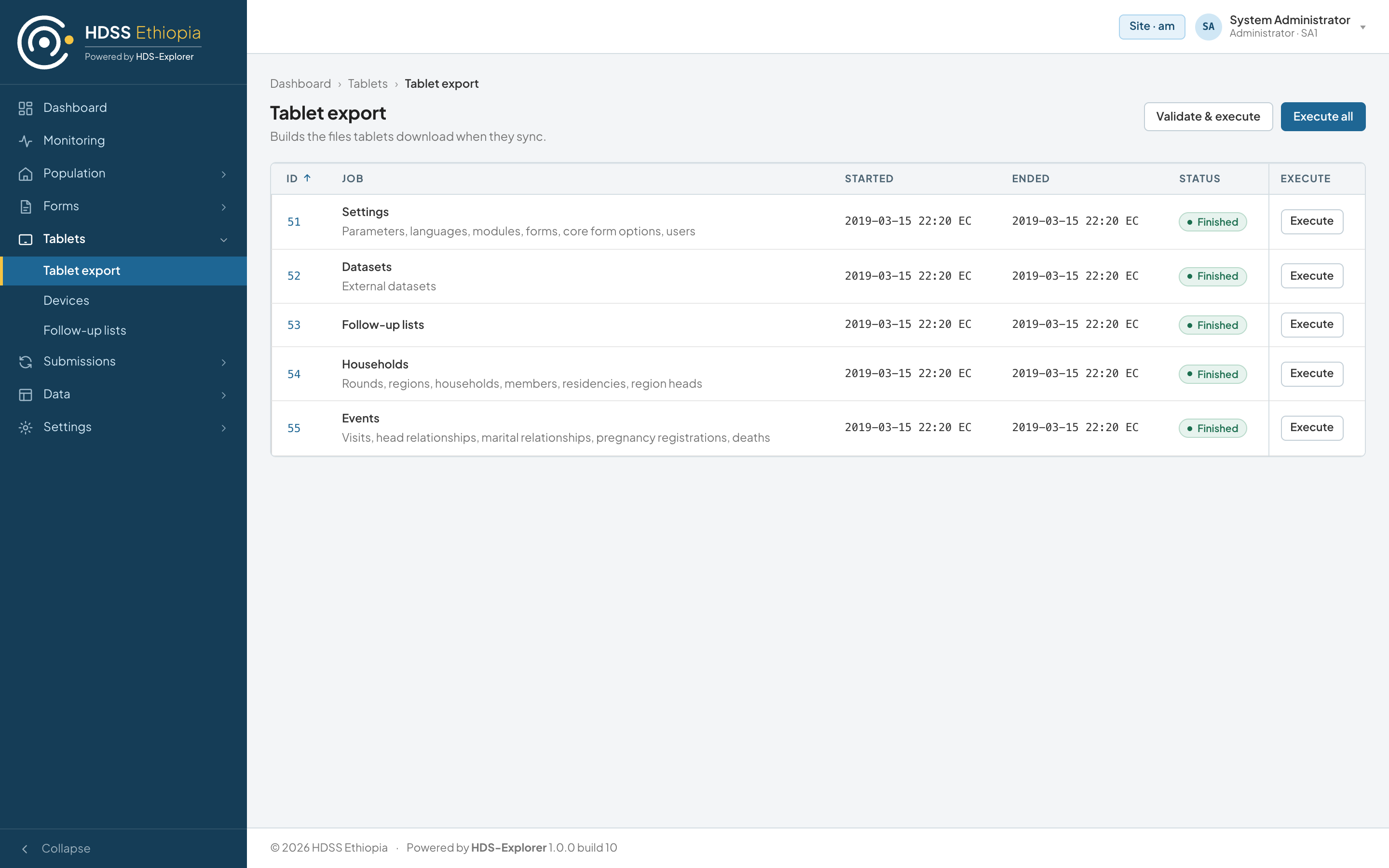
Tablets do not read the server's database directly. They download files that the server builds in five exports:
| Export | What it contains |
|---|---|
| Settings | Parameters, languages, modules, forms, core form options and users. |
| Datasets | External datasets used by forms. |
| Follow-up lists | The households, individuals and areas that fieldworkers must revisit. |
| Households | Rounds, regions, households, individuals, residencies and region heads. |
| Events | Visits, head relationships, marital relationships, pregnancy registrations and deaths. |
-
Open Tablets › Tablet export.
-
Select Execute all to build every export. To rebuild only one, select Execute on its row.
- Wait until each row shows the Status Finished.
When to run the export again
Most exports run by themselves:
- The Settings export runs after a save of the system settings, ID rules, region levels, study modules or core form options.
- The Households and Events exports run after records are executed or changed on the console, when Export after execution is Yes under Settings › System.
Run the export yourself after creating or changing user accounts, after importing follow-up lists, when Export after execution is No, or when a row shows an error.
Get the tablet application onto a tablet
The tablet application is an Android package (APK) of the HDSS Ethiopia tablet application, in the build that connects to the server over plain http://.
- On the tablet, open the web browser and go to the server address followed by
/download/apk, for examplehttp://192.168.1.10:8080/download/apk. No sign-in is needed. - Open the downloaded file and allow the installation when Android asks.
To update an installed application, open Settings on the tablet and select Check for updates. To make sure every tablet updates, set a Minimum tablet build on the Devices page (see below): tablets below it are refused synchronization until they update.
Set up each tablet
Set up each tablet with a supervisor's or data manager's account: by default a Field worker account downloads settings and forms but not the register. After the first Synchronize all, each fieldworker signs in with their own account. The steps are in Setting up a tablet.
Manage tablets on the Devices page
Every tablet that signs in or checks for updates is listed under Tablets › Devices, with its app version, last user, last seen time and last upload.
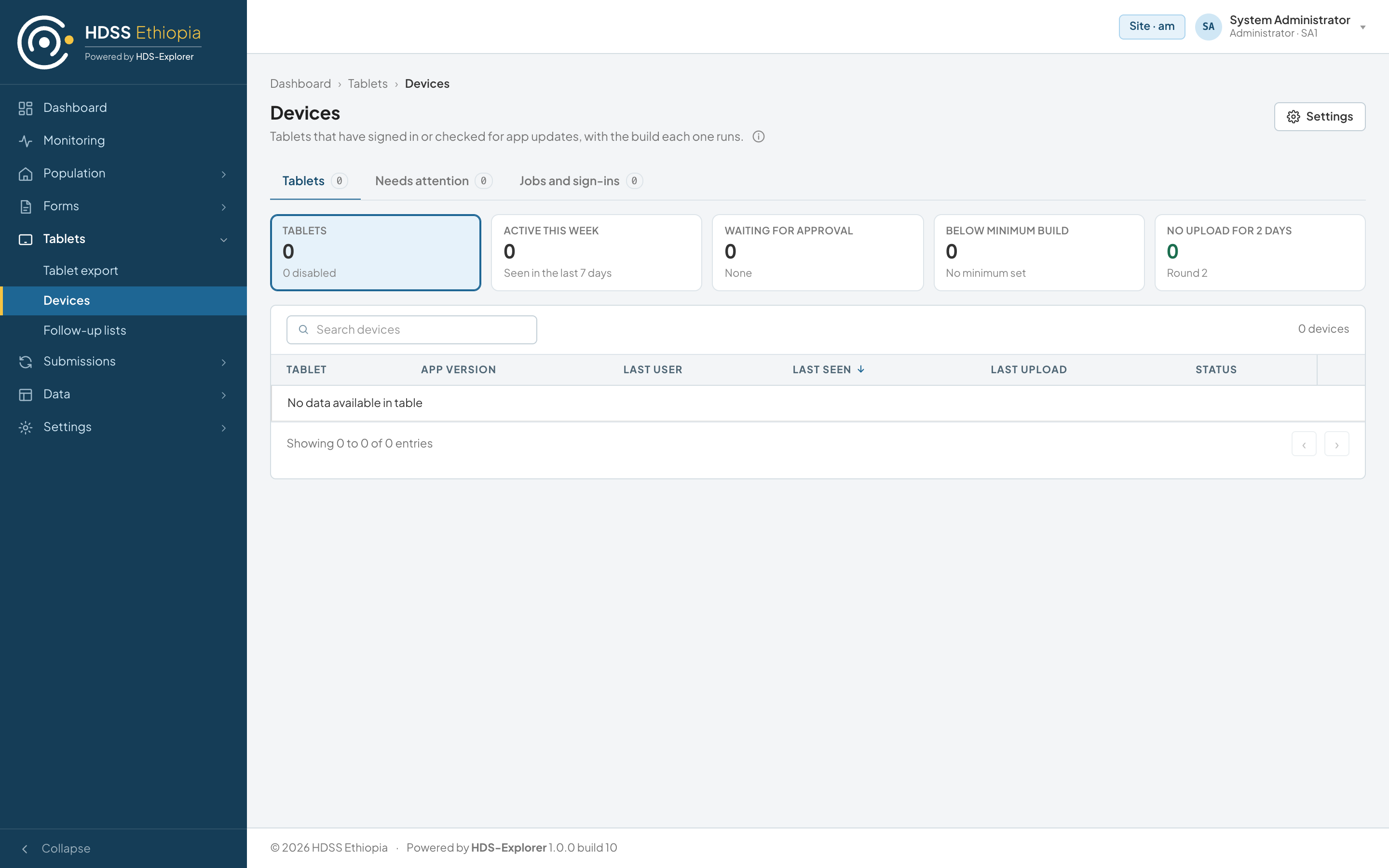
- Disable a tablet that is lost, stolen or no longer in use: select Disable on its row and confirm. The server then refuses its downloads and uploads. Records not yet sent stay on the tablet. Select Enable to let it synchronize again.
- Approve a new tablet: after a user's tablet is disabled, the next new tablet that user signs in on waits under Waiting for approval. Select Approve to let it synchronize.
- Set a minimum build: select Settings, enter the Lowest build number that may synchronize and select Save minimum. Leave it empty for no minimum.
- Watch for missing uploads: while a round is in progress, tablets with no upload for a number of days are listed as needing attention. Set the number under Settings, Days without an upload, then select Save days.
Follow-up lists
A follow-up list names the households, individuals or areas that fieldworkers must revisit, for example for a study module. Open Tablets › Follow-up lists, download the Sample file or Empty template, fill it in Excel and select New follow-up list to import it. Then run the Follow-up lists export. See Follow-up lists and collected forms for how fieldworkers use them.
Result
Each tablet has the application installed and has downloaded the settings, forms and register of its area. It appears on the Devices page with the status Enabled.