User accounts
Create an account for every person who signs in to the console or the tablet, choose their roles and assign the areas they work in.
Before you begin
- Required role: Administrator
- Prerequisites: Administrative areas exist, because accounts are assigned to areas of the lowest level. You have the staff list with each person's name, role and areas.
Roles
| Role | What the account is for |
|---|---|
| Administrator | Users, settings and modules. |
| Data manager | Reviews and exports data. |
| Field worker | Collects visits on the tablet. Cannot sign in to the console. |
| Monitor | Read-only dashboard. |
| Researcher | Reads de-identified research data. |
| Supervisor | Dashboard, reports, rejected submissions and the register of their assigned areas only. |
See User roles and permissions for what each role can open.
Create a user
-
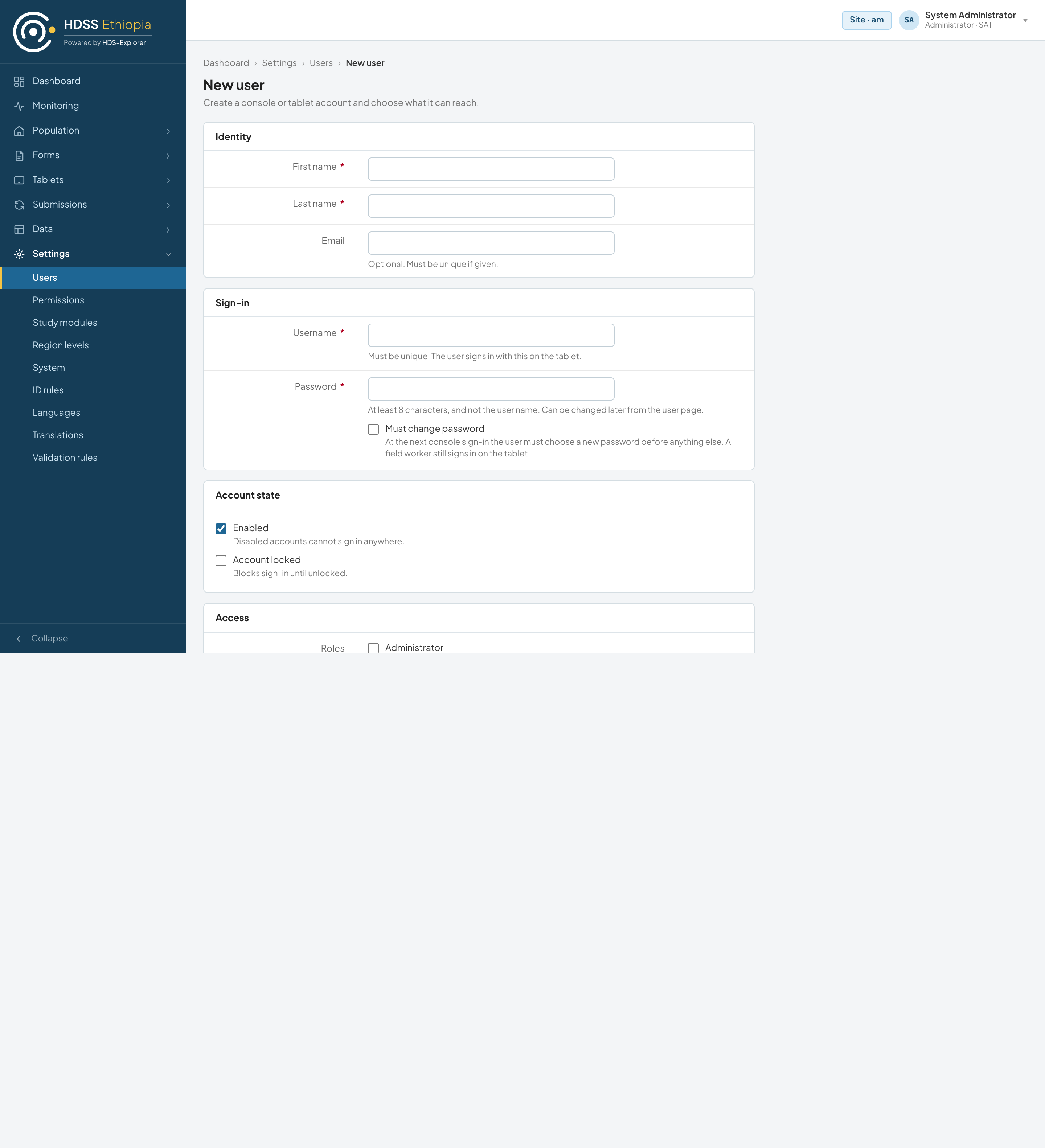
Open Settings › Users, then select New user.
-
Under Identity, enter the First name and Last name. Email is optional, but must be unique if given.
- Under Sign-in, enter the Username (unique; the user signs in with it on the console and the tablet) and a Password of at least 8 characters that is not the user name.
- Tick Must change password so that the user chooses their own password at the next console sign-in. A fieldworker, who signs in only on the tablet, is not asked.
- Under Account state, leave Enabled ticked and Account locked clear.
- Under Access, tick at least one of the Roles.
- Under Modules, tick the study modules the user works on. Leave it empty to give the user the default module.
- Under Areas, tick the areas the user works in:
- For a fieldworker, the tablet then receives only these areas. Leave it empty to let the user see every area on the tablet.
- For a supervisor, the console shows only the records of these areas. A supervisor with no area ticked sees nothing.
- Select Save.
Tip
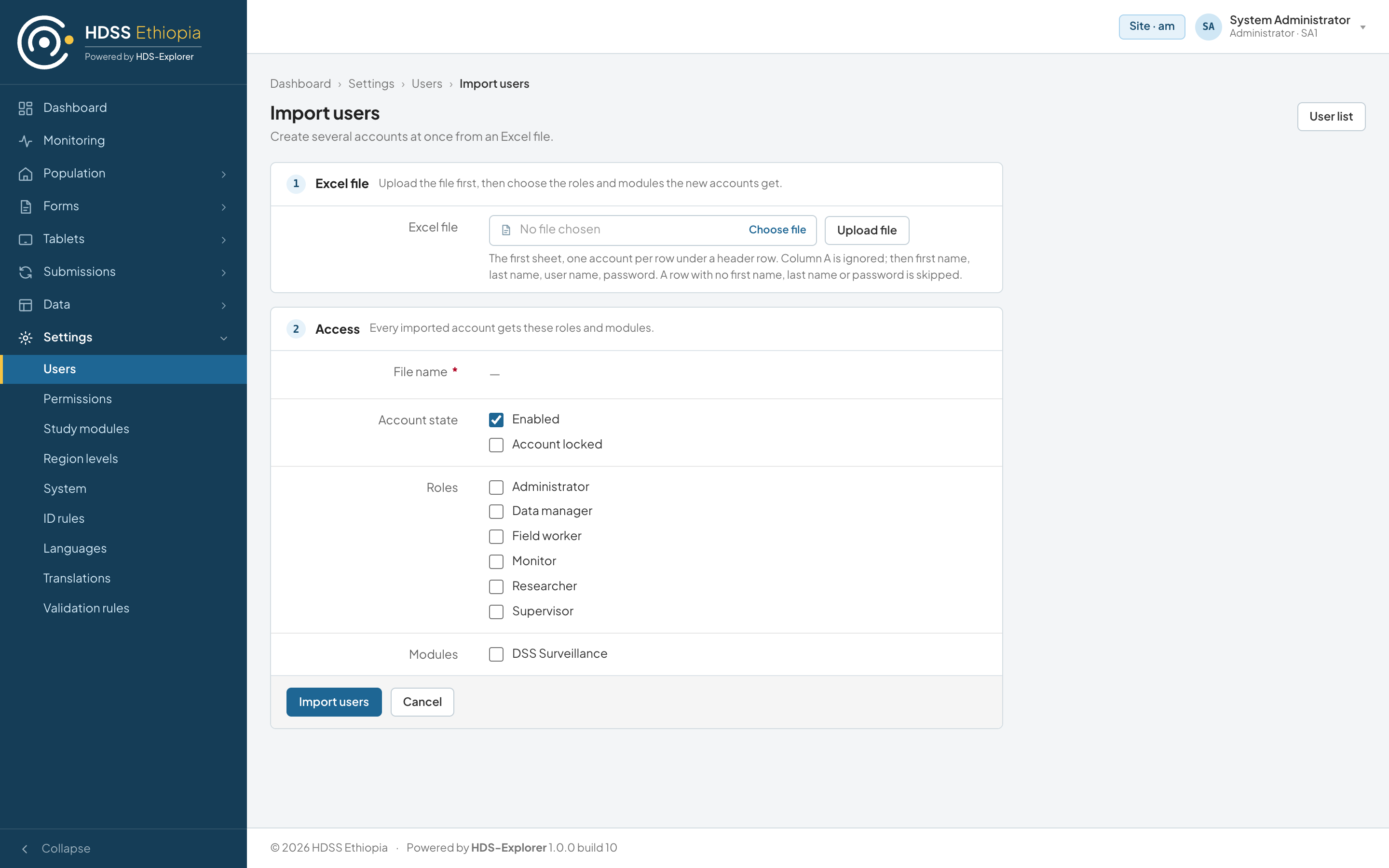
To create many accounts at once, select Import users on the Users page. Upload an Excel file with one account per row (column A is ignored, then first name, last name, user name and password), then choose the roles and modules that every imported account gets.
Accounts that can set up a tablet
Every account that works on a tablet can sign in, collect data and upload. Two permissions decide what a tablet can download:
- Sync Downloads: settings, forms and the other files. Held by administrators, data managers, supervisors and fieldworkers.
- Sync register: the register itself (areas, households, individuals, events and follow-up lists). Held by administrators, data managers and supervisors, not fieldworkers.
Because of this, a tablet is first set up with a supervisor's or data manager's account, which brings the register of the area to the tablet. Fieldworkers then sign in with their own accounts. See Setting up a tablet.
Reset a password
- Open Settings › Users and select the user.
- Select Change password, enter the New password and Confirm password, then select Save. Tick Must change password if the user should choose their own password at the next console sign-in.
- Give the new password to the user. They use it on both the console and the tablet.
If an account was refused after too many wrong passwords, the user's page shows Sign-in refused until a time. Select Allow sign-in now to lift it.
Disable a user
- Open Settings › Users, select the user, then select Edit.
- Clear Enabled and select Save. A disabled account cannot sign in anywhere.
To let the person sign in again, tick Enabled again.
Change what a role can open
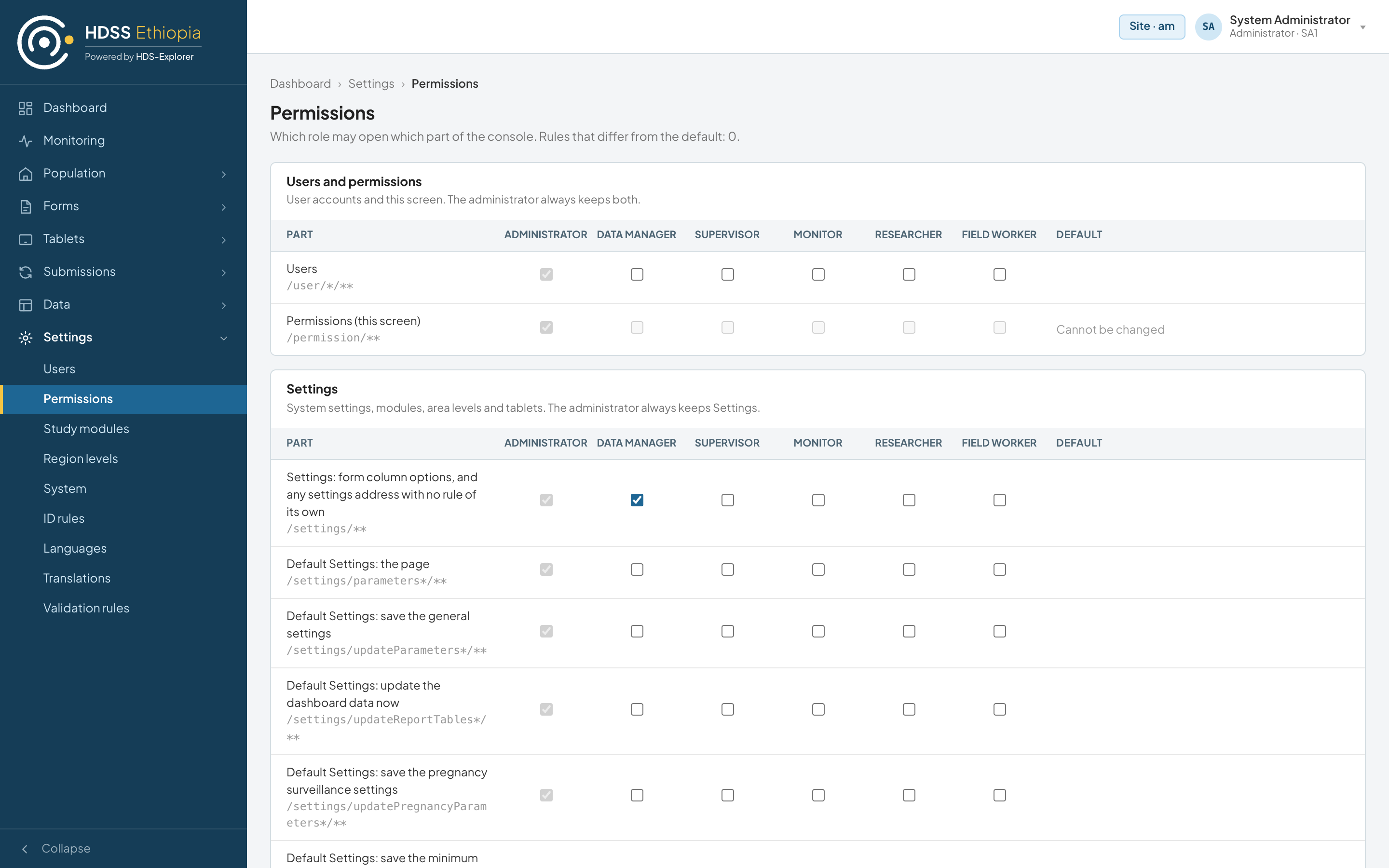
The Settings › Permissions page sets which role may open which part of the console, and which roles hold Sync Downloads and Sync register.
Warning
Change permissions only when the site has a clear reason, for example to stop fieldworkers downloading. A wrong change can block staff from the pages they need. The administrator always keeps Users, Permissions and Settings. The page header shows how many rules differ from the default.
To change a permission, tick or clear the role's box on the row, then select Save permissions.
Result
The Users list shows each account with its code, roles, areas and status. Tablets receive new and changed accounts with the next settings export. If a new account cannot sign in on a tablet, run the Settings export from Tablets › Tablet export and synchronize the tablet.